-
●
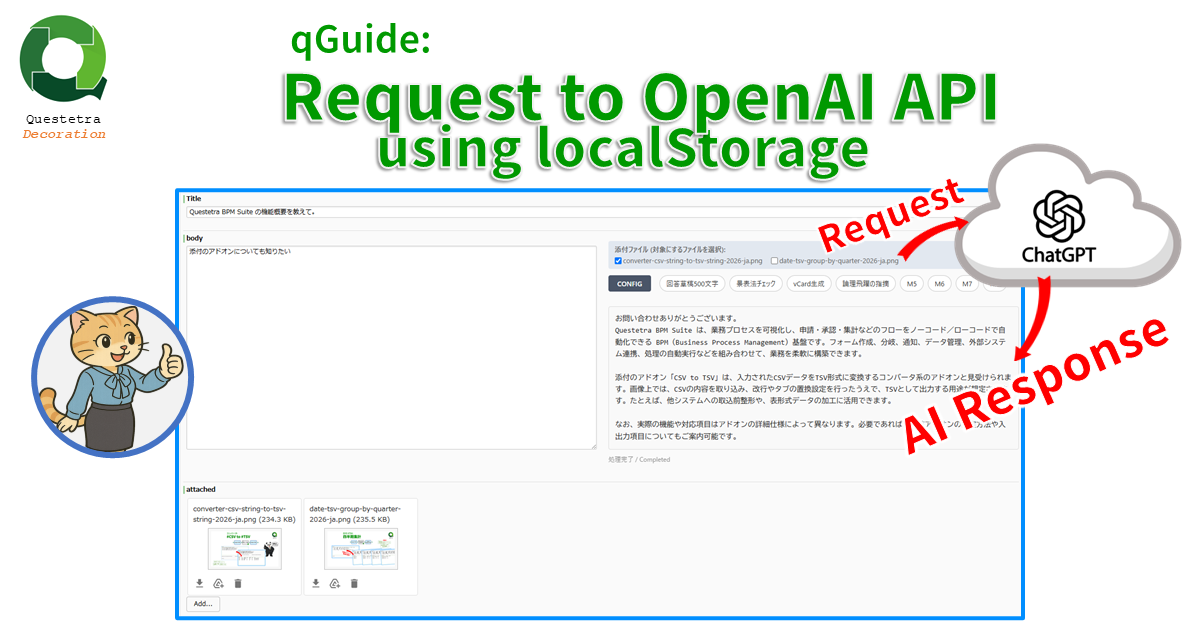
qGuide: Request to OpenAI API using localStorage v202606
Sends the text and file information stored in specified data fields to the Responses API via CORS. The responses (the sentence generated by the model) will be displayed in streaming format. Depending on the prompt settings, various support functions to assist task…
-
●
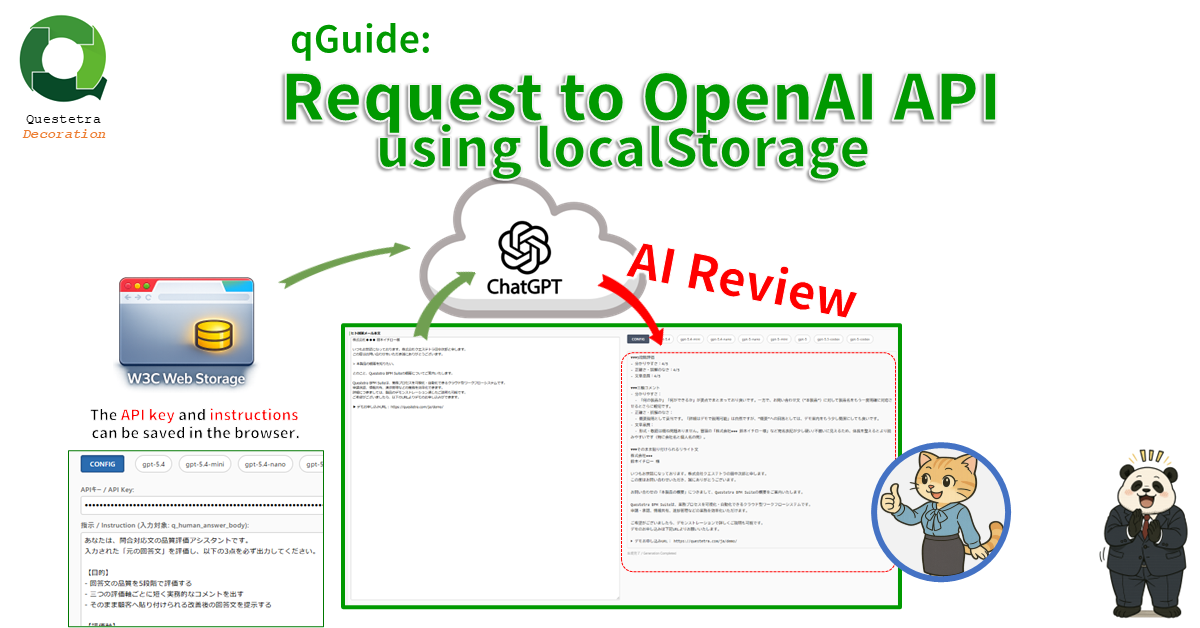
qGuide: Request to OpenAI API using localStorage
Sends the Input-string to the Responses API via CORS. The responses (the sentence generated by the model) will be displayed in streaming format. Depending on the prompt settings, various support functions to assist task operators can be provided, such as a typo…
-
●
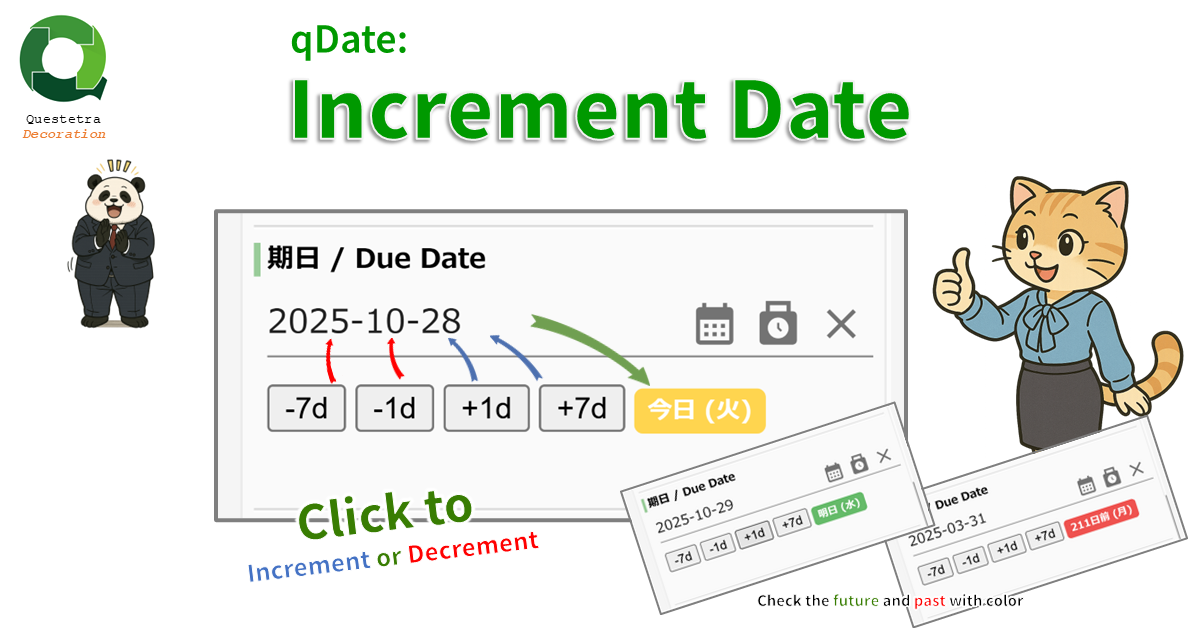
qDate: Increment Date
Assists in inputting Date-type data items. You can increase or decrease the date using buttons such as “+1 day” and “-7 days.” The number of days from the present and the day of the week are also displayed, making it intuitive to…
-
●
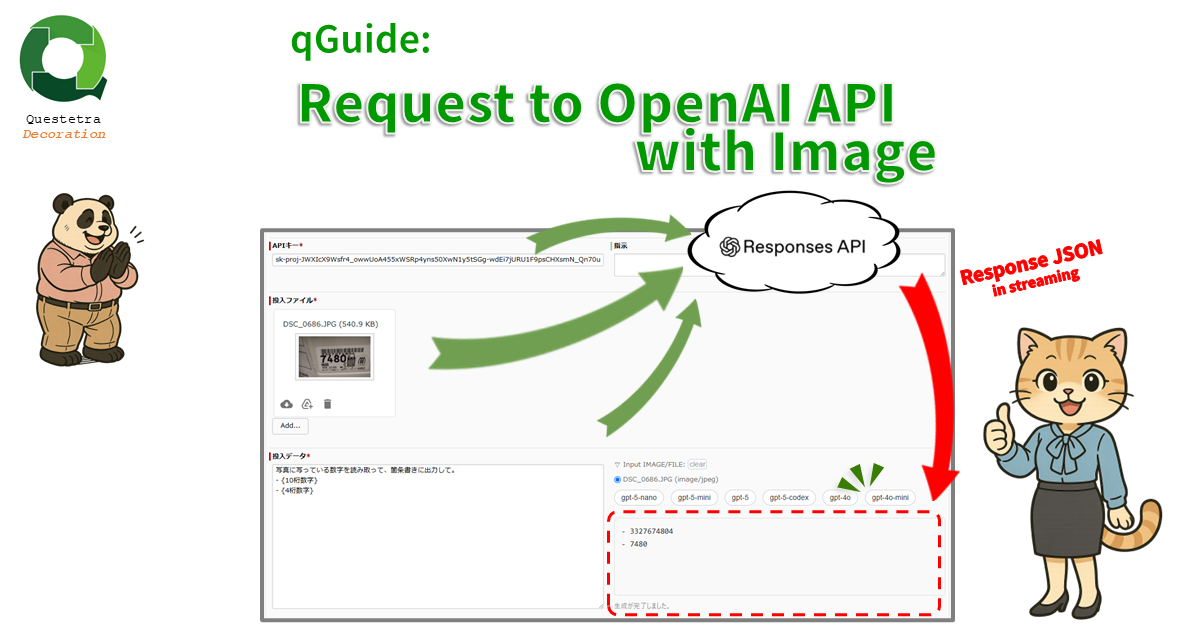
qGuide: Request to OpenAI API with Image
The “input file” (image or pdf), the “input data” string, and the “API key” are sent to the Responses API via CORS. The response (text generated by the model) is streamed on the Task Form screen. Depending on the prompt settings, various…
-
●

qGuide: Request to OpenAI API
Send the Input-string and ApiKey-string to the Responses API via CORS. The responses (the sentence generated by the model) will be displayed in streaming format. Depending on the prompt settings, various support functions to assist task operators can be provided, such as…
-
●
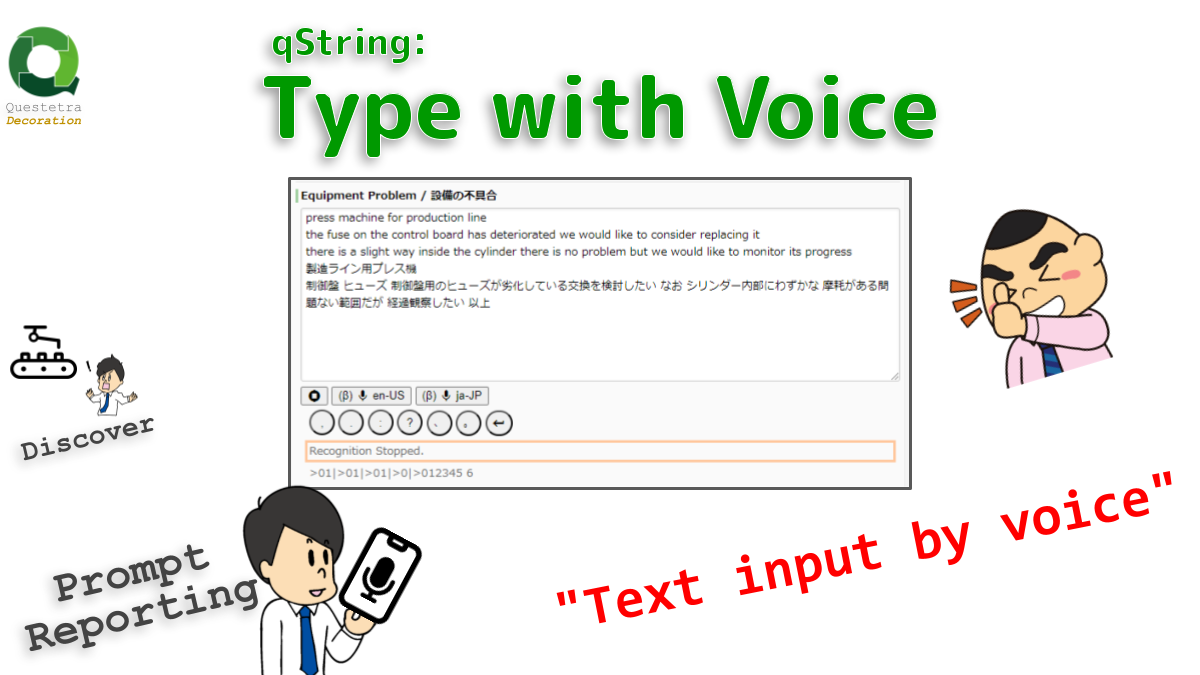
qString: Type with Voice
Accepts voice input. Currently, it works only with Chrome and some other browsers. Press the Speech Recognition button to speak and characters will be entered. This is useful for reporting “facility inspection results” via smartphone. Note that the server-based recognition engine is…
-
●
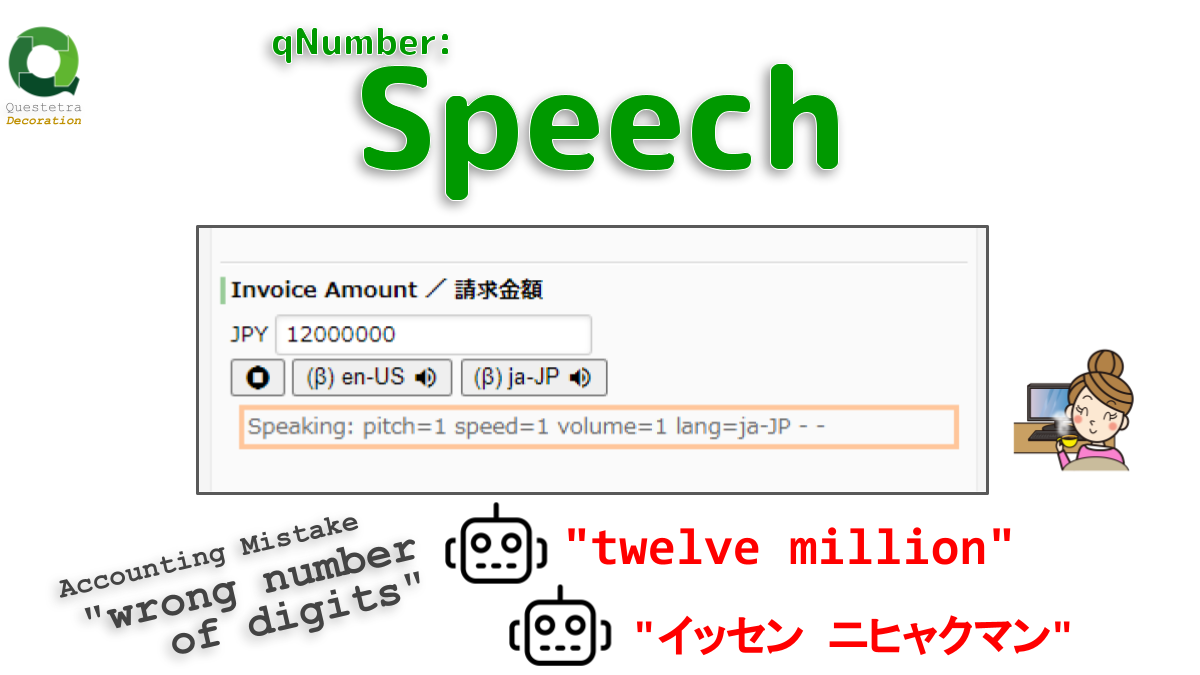
qNumber: Speech
Reads out numerical values in numeric type fields (Text-to-Speech), using the Web Speech API (Speech Synthesis). For example, the billing amount data “12,000,000 (yen)” can be confirmed by the voice “issen ni-hyakuman” or “twelve million”.
-
●

qGuide: Batch Paste from Clipboard
Button for batch input to multiple form elements. The text on the clipboard is split into lines and pasted into each field. In this example, batch pasting to 4 fields (singleline string, select, date, multiline string) is implemented.
-
●
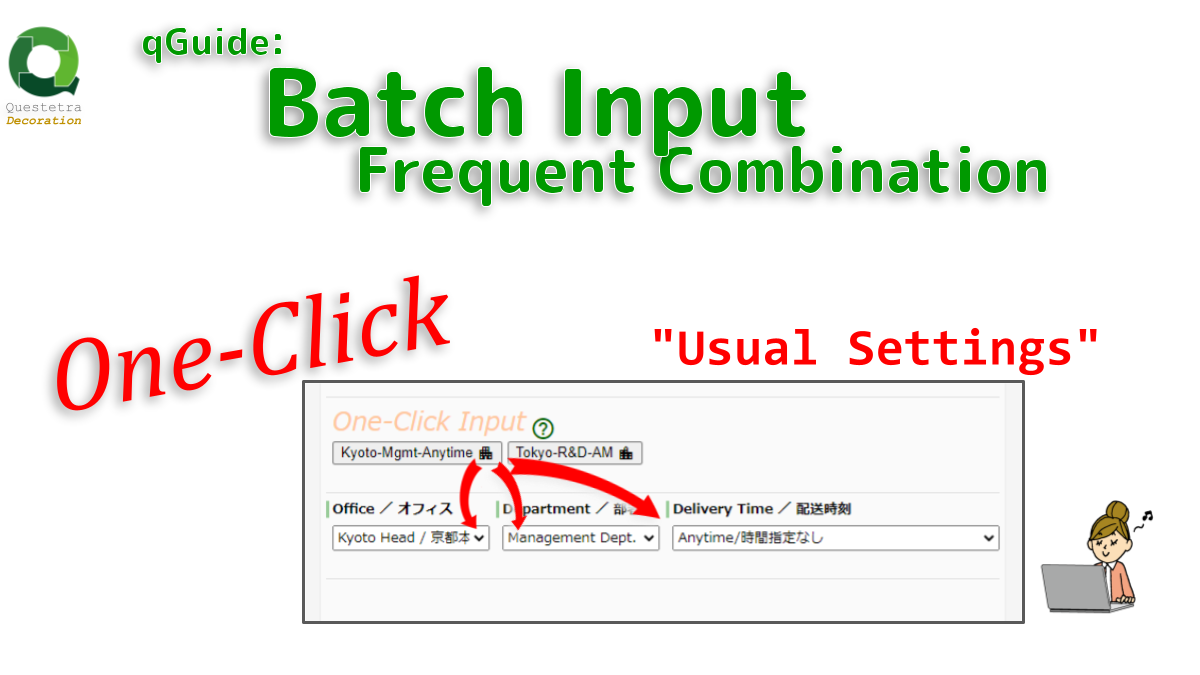
qGuide: Batch Input Frequent Combination
Button for batch input to multiple form elements allows popular combinations of input values to be implemented as a single button, reducing input costs and the risk of incorrect input. In this example of setting a delivery destination, options such as “Select:…
-
●
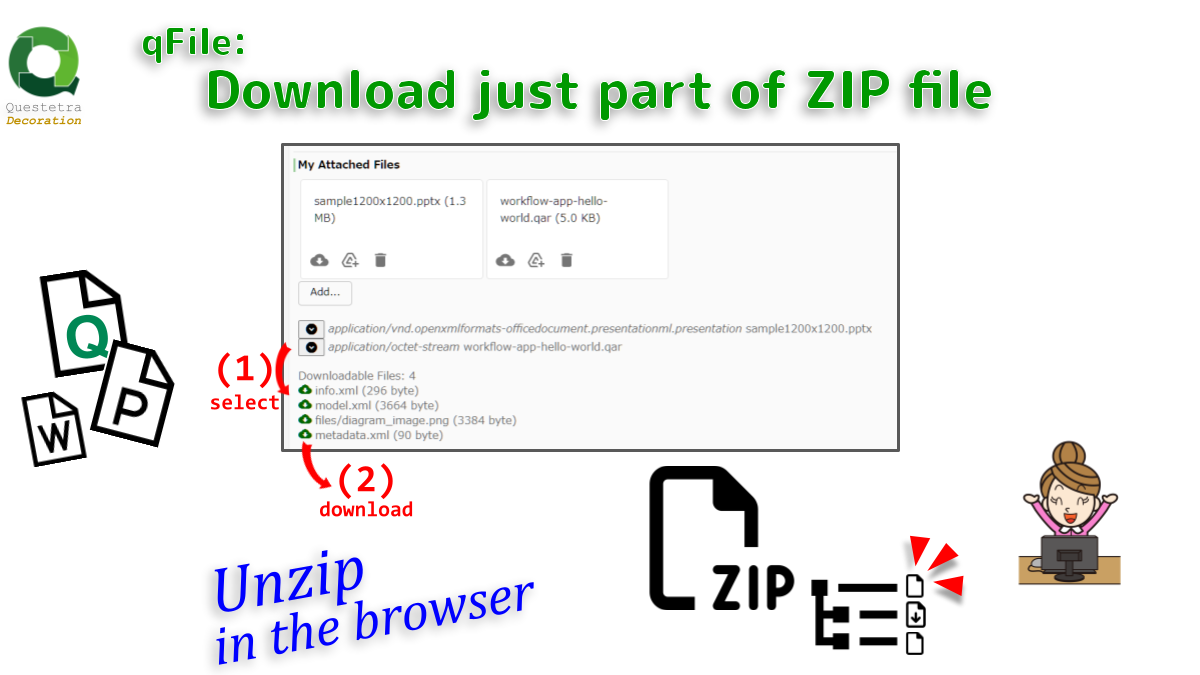
qFile: Download just part of ZIP file
Unzips the Zip-file attached in FILE type data. User can download any file in any ZIP file. ZIP compatible file formats such as “docx”, “apk”, “qar” can also be decompressed.
-
●
qString: Generate Password
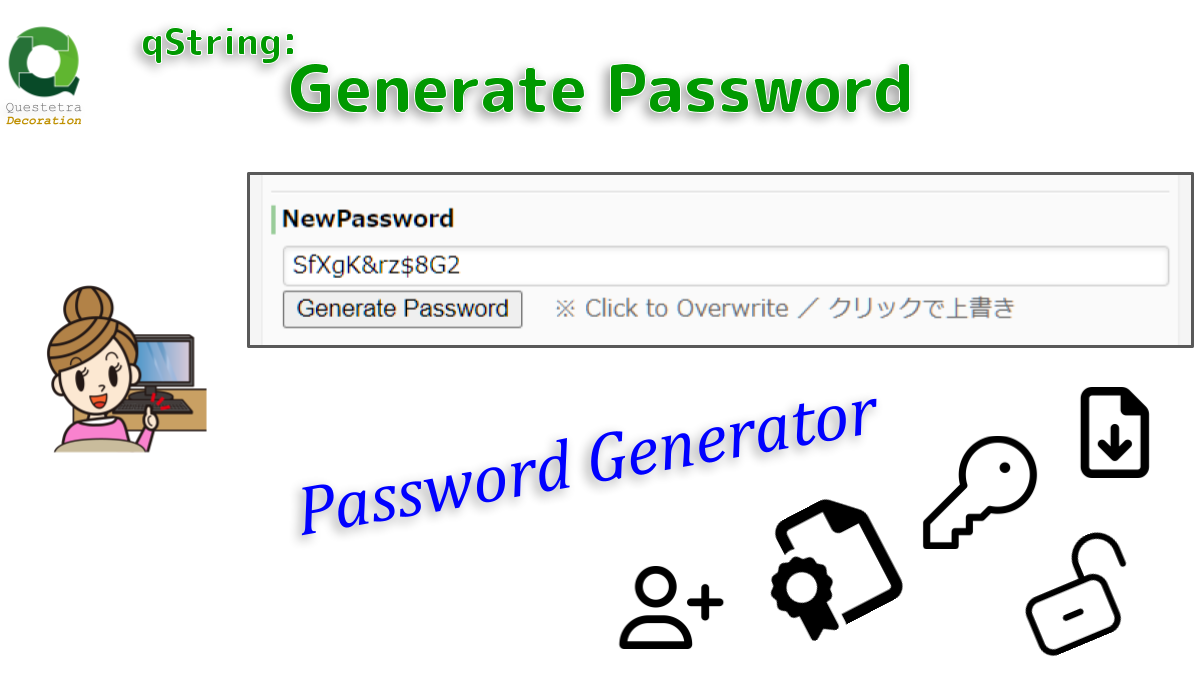
Generates a 12-character password. Randomly extracts 2 characters from “23456789”, 4 characters from “ACFGHJKNRSUXYZ”, 4 characters from “acfghjknrsuxyz”, and 2 characters from “#$%&+-“. Characters that are easily misidentified (e.g., “1” and “l”) are not extracted.
-
●
qString: Overwrite with HELLO WORLD
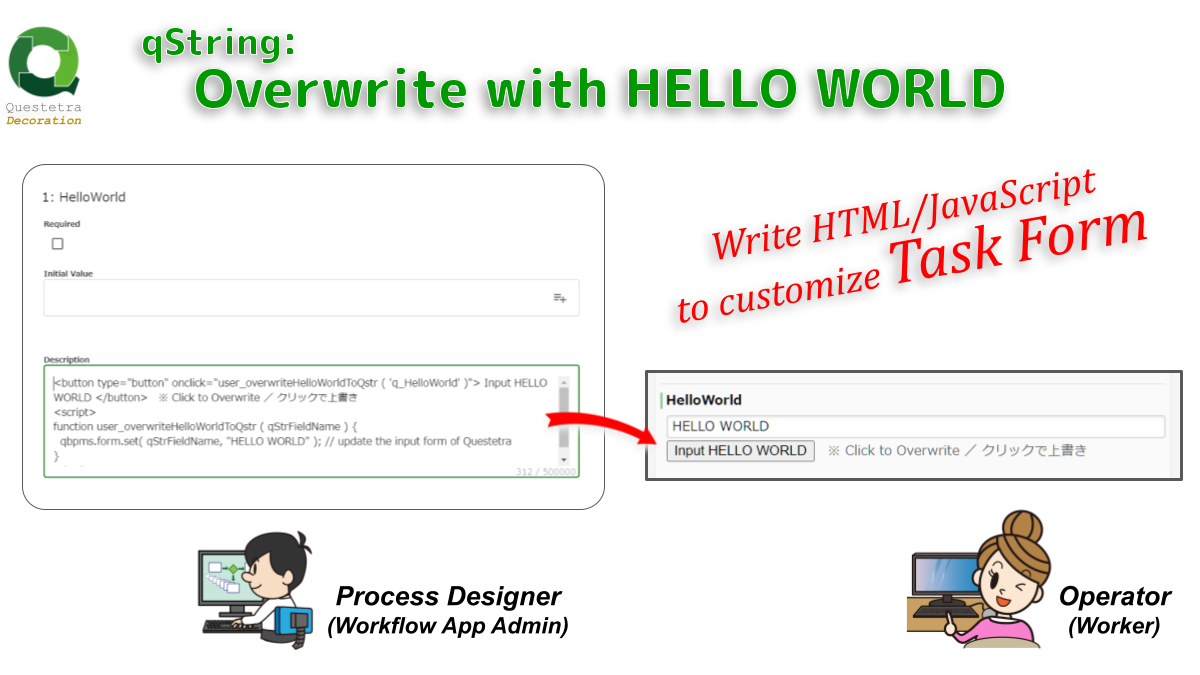
Hello World for learning the “Questetra Form JavaScript API”. Set the following code in the “Description” section of the STRING DataItem. The “Input HELLO WORLD” button will appear on the Task Form. (Editable Step with read/write permission)
Task Form Decoration
-
qGuide: Request to OpenAI API using localStorage v202606
Sends the text and file information stored in specified data fields to the Responses API via CORS. The responses (the sentence generated by the model) will be displayed…
-
qGuide: Request to OpenAI API using localStorage
Sends the Input-string to the Responses API via CORS. The responses (the sentence generated by the model) will be displayed in streaming format. Depending on the prompt settings,…
-
qDate: Increment Date
Assists in inputting Date-type data items. You can increase or decrease the date using buttons such as “+1 day” and “-7 days.” The number of days from the…
-
qGuide: Request to OpenAI API with Image
The “input file” (image or pdf), the “input data” string, and the “API key” are sent to the Responses API via CORS. The response (text generated by the…
-
qGuide: Request to OpenAI API
Send the Input-string and ApiKey-string to the Responses API via CORS. The responses (the sentence generated by the model) will be displayed in streaming format. Depending on the…
-
qString: Type with Voice
Accepts voice input. Currently, it works only with Chrome and some other browsers. Press the Speech Recognition button to speak and characters will be entered. This is useful…
-
qNumber: Speech
Reads out numerical values in numeric type fields (Text-to-Speech), using the Web Speech API (Speech Synthesis). For example, the billing amount data “12,000,000 (yen)” can be confirmed by…
-
qGuide: Batch Paste from Clipboard
Button for batch input to multiple form elements. The text on the clipboard is split into lines and pasted into each field. In this example, batch pasting to…
-
qGuide: Batch Input Frequent Combination
Button for batch input to multiple form elements allows popular combinations of input values to be implemented as a single button, reducing input costs and the risk of…
-
qFile: Download just part of ZIP file
Unzips the Zip-file attached in FILE type data. User can download any file in any ZIP file. ZIP compatible file formats such as “docx”, “apk”, “qar” can also…
-
qString: Generate Password
Generates a 12-character password. Randomly extracts 2 characters from “23456789”, 4 characters from “ACFGHJKNRSUXYZ”, 4 characters from “acfghjknrsuxyz”, and 2 characters from “#$%&+-“. Characters that are easily misidentified…
-
qString: Overwrite with HELLO WORLD
Hello World for learning the “Questetra Form JavaScript API”. Set the following code in the “Description” section of the STRING DataItem. The “Input HELLO WORLD” button will appear…