-
●
Upload to Dropbox
Upload files to specified directory in Dropbox. You can specify whether to overwrite files with the same name.
-
●
Image-Charts: QR Code, Create
Creates a QR Code using the Image-Chart QRCode web service generation. It is possible to encode any string data to the QR code. The QR Code image will be output in png format.
-
●

Adobe PDF Services #Results: Download
Downloads the files (results of PDF OPERATIONS) from PDF Services storage using Polling-URI; Job status URI for polling the results. Note that if the Job is in progress, the FILE type data will be updated as empty, and errors will not occur.
-
●
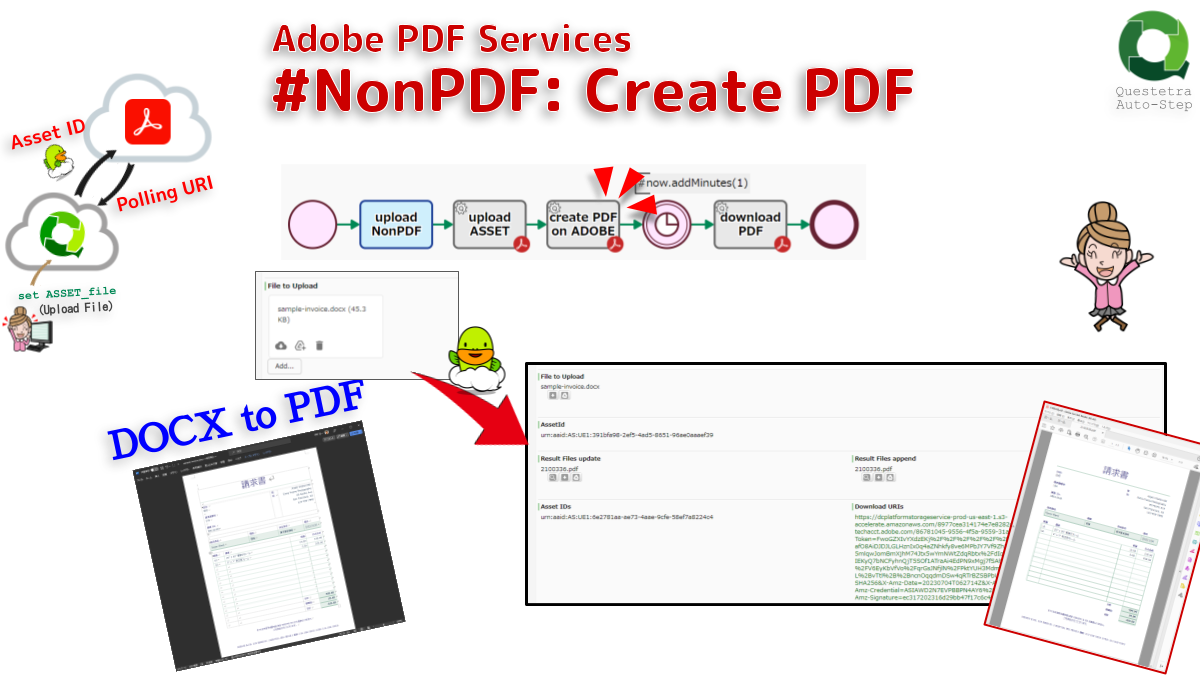
Adobe PDF Services #NonPDF: Create PDF
Creates PDF document from Non PDF Asset stored in the internal storage for PDF Services. Note that the job result (PDF file) will be obtained in an automated task that downloads it using the Polling-URI in the downstream process.
-
●
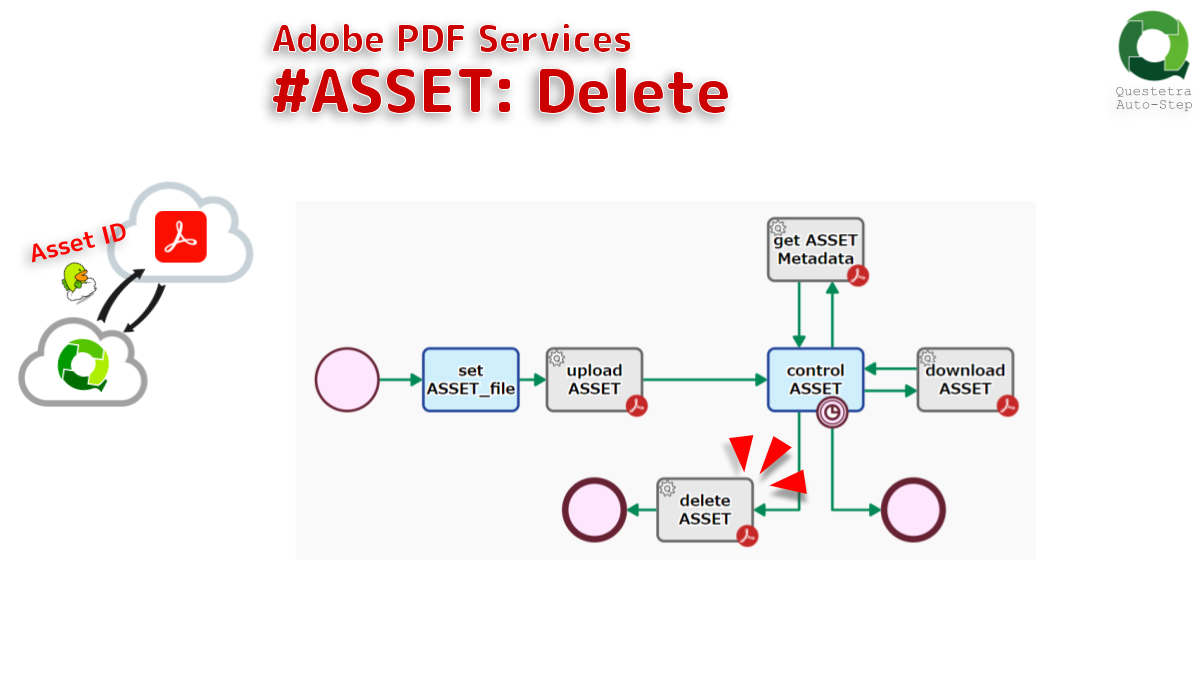
Adobe PDF Services #ASSET: Delete
Deletes the ASSET (file) stored in internal storage for PDF Services.
-
●
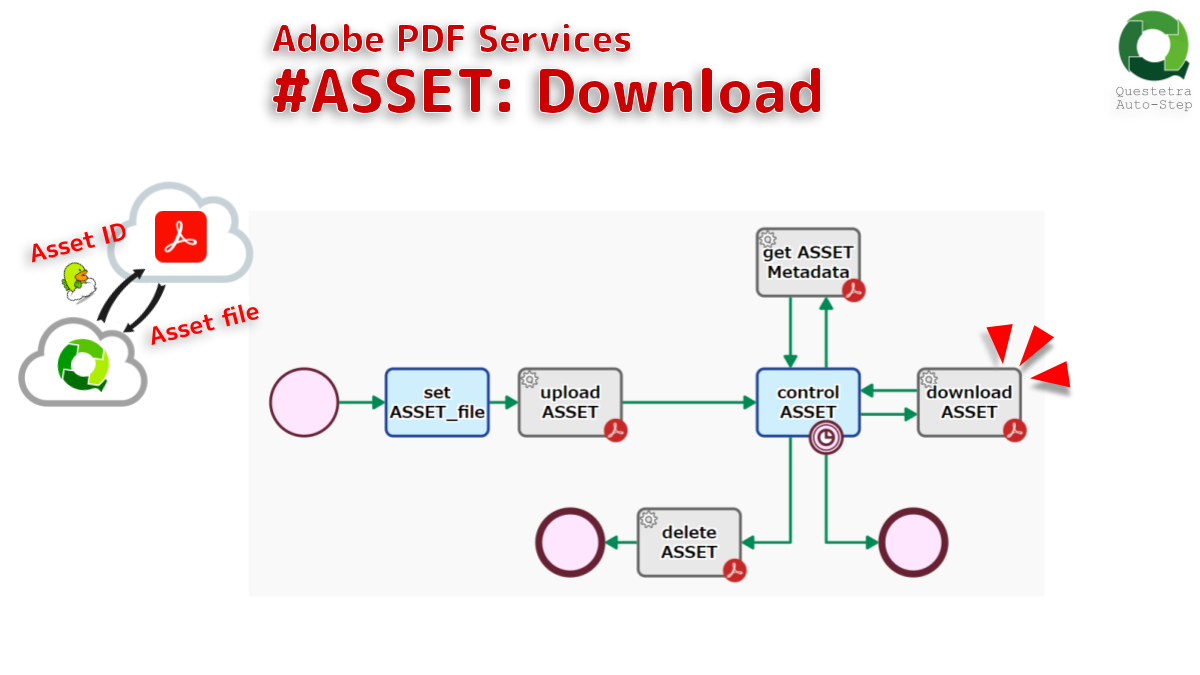
Adobe PDF Services #ASSET: Download
Downloads ASSET file stored in the internal storage for PDF Services. It is also possible to get the file size and Content-Type. The default file name is the process ID and the extension is automatically added.
-
●
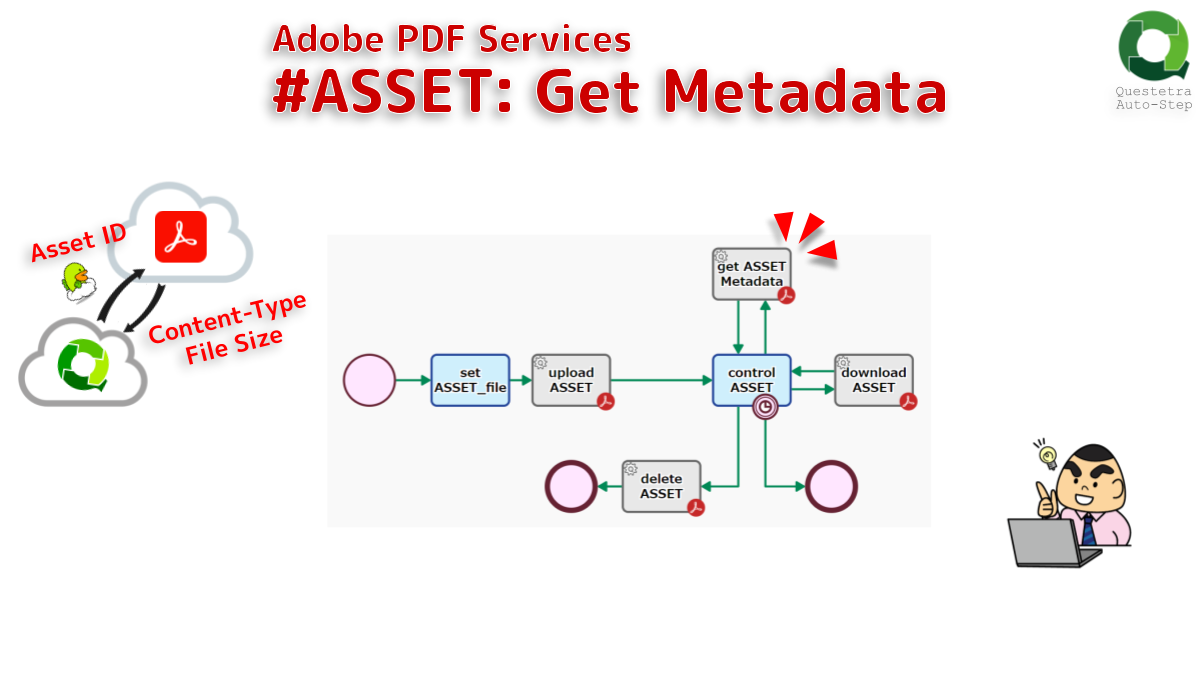
Adobe PDF Services #ASSET: Get Metadata
Retrieves metadata for ASSET (file) stored in internal storage for PDF Services; the accessible user ID, file size, and Content-Type.
-
●
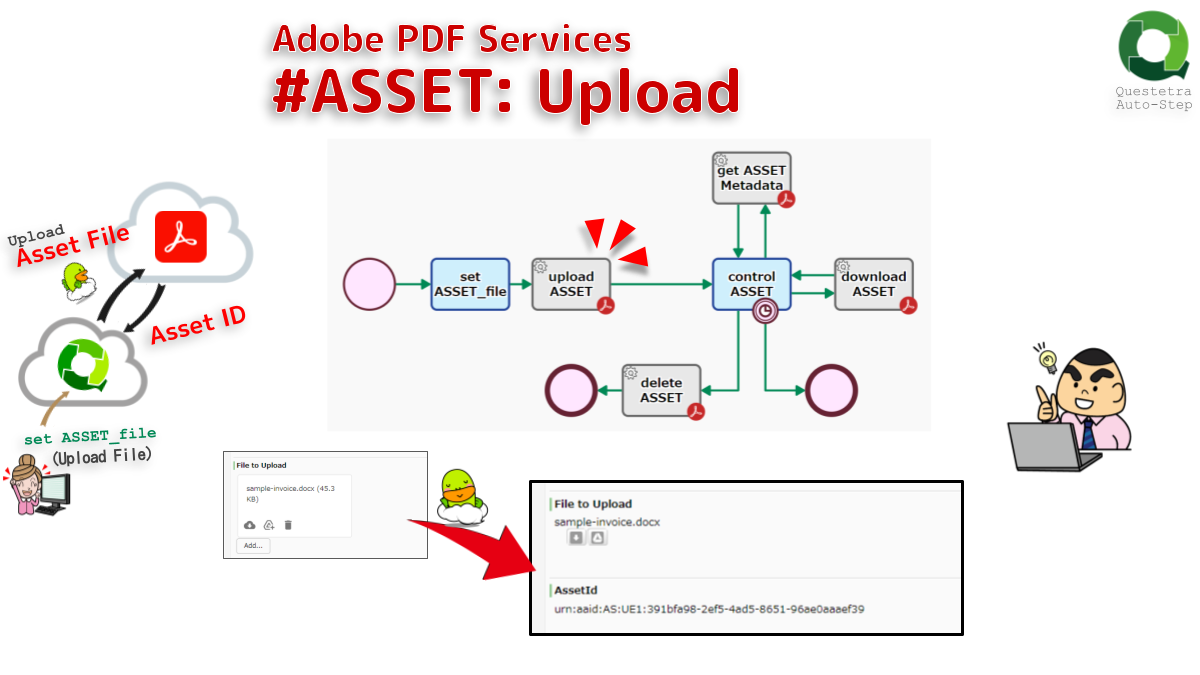
Adobe PDF Services #ASSET: Upload
Uploads an ASSET (file) to the internal storage for PDF Service. AssetID is used in the downstream PDF Services operations.
-
●

Post Message through LINE Notify
Posts a message to a LINE group through LINE Notify. Please obtain a personal access token in advance. The recipient of the message will be selected at the time of acquiring the token, either the user acquiring the token themself or a…
-
●
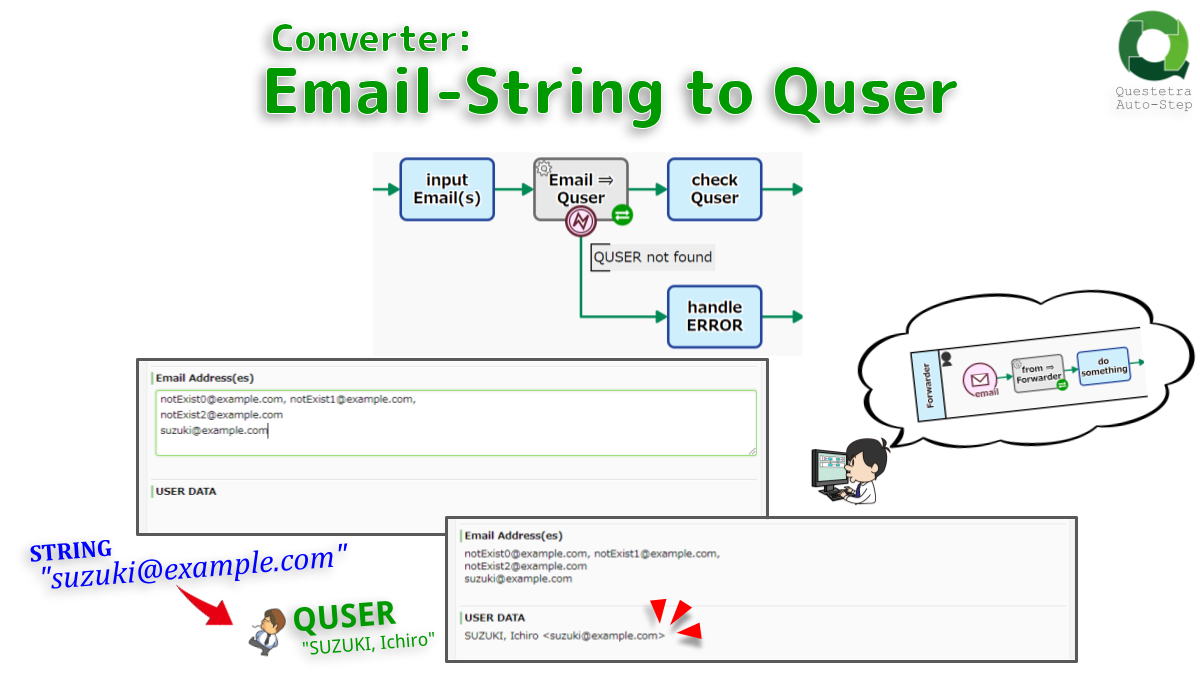
Converter: Email-String to Quser
Converts an Email string to USER data. If the address is not registered as a user address, an error will occur (USER not updated). If multiple addresses are enumerated in multiline or comma-delimited string, determined sequentially from the top.
-
●
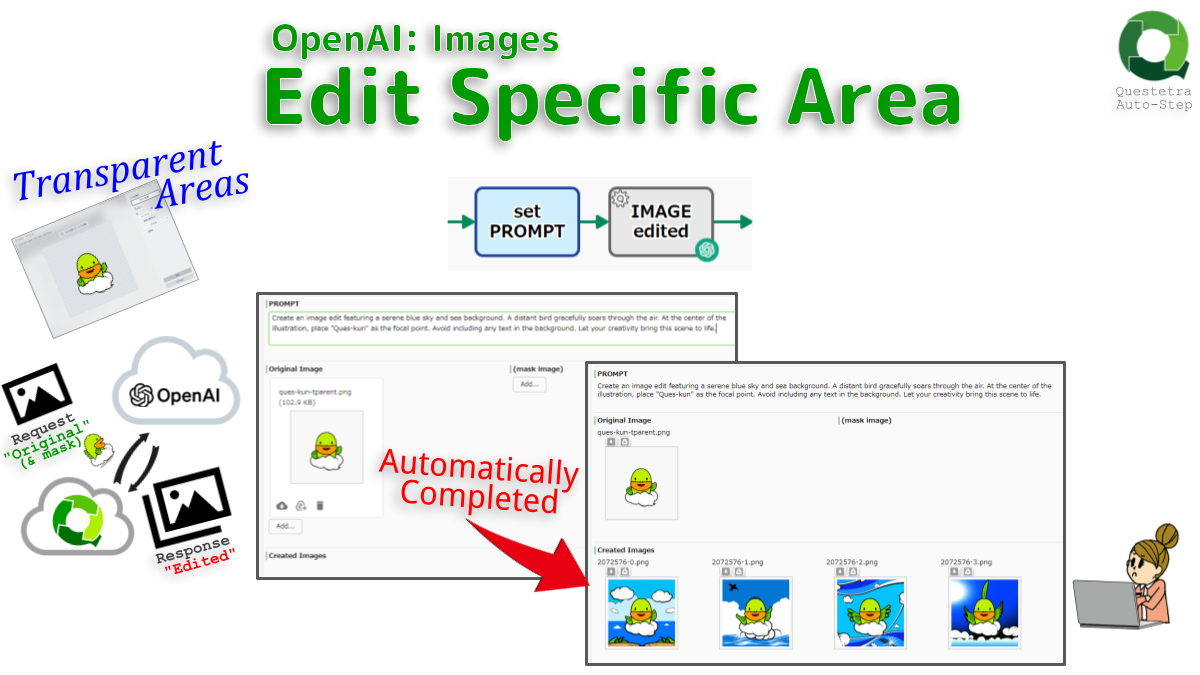
OpenAI #Images: Edit Specific Area
Completes the transparent areas of an original image with a PROMPT, by default 1024×1024. The areas to be edited can also be specified in another file. The given image must be square less than 4MB. The maximum number created at once is…
-
●
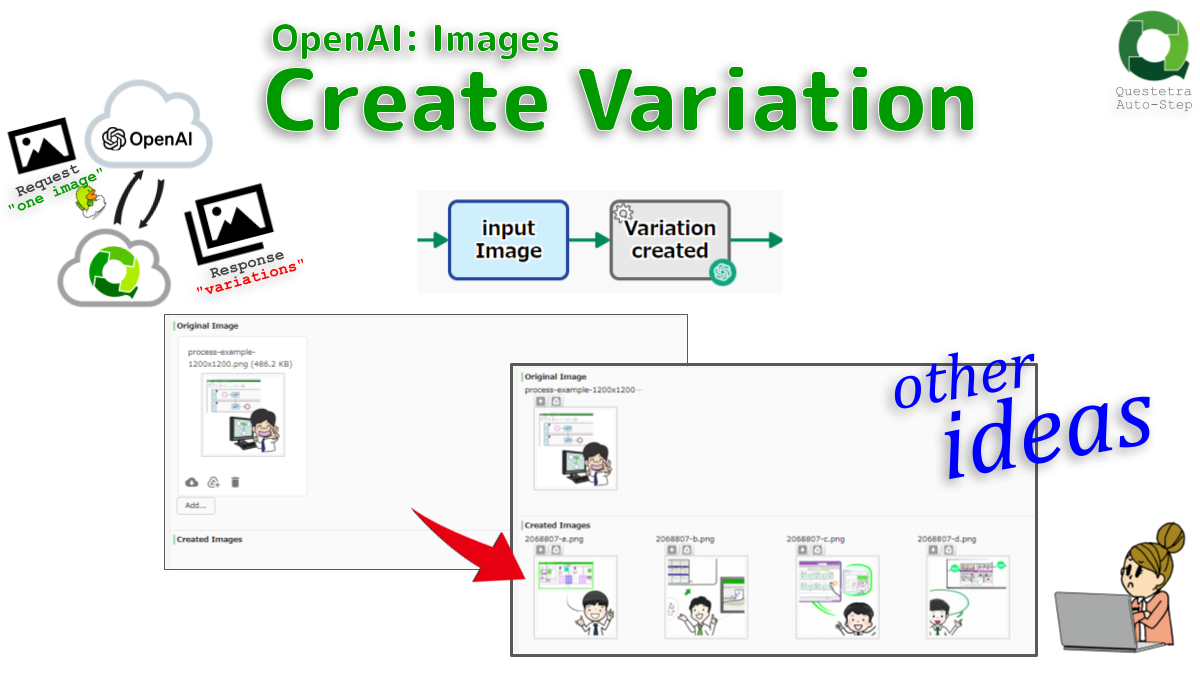
OpenAI #Images: Create Variation
Creates a variation of a given image. By default a 1024×1024 image is created. 256×256 or 512×512 are also creatable. The given image must be a square image less than 4MB. The maximum number that can be created at once is 10.
-
●

OpenAI #Images: Generate
Creates an image given a prompt. By default a 1024×1024 image is generated, but you can change it to 256×256 or 512×512. Note that PROMPT must be defined within 1000 characters.
-
●

Singleline CSV String, Extract Cell
Extracts the cell value of the specified ID, starting from zero. The extracted cell string can be stored not only in the String-type data but also in the Numeric-type, Date-type, Datetime-type, Select-type, User-type, and Org-type data.
-
●

OpenAI #Chat: Interact with Parameters
Communicates with OpenAI API (ChatGPT); the default MODEL is “gpt-4” (configurable). Supports almost all Chat features, such as re-asking based on histories and/or parameters; sampling temperature-Top_P, Presence-Frequency penalty, Logit bias.
-
●
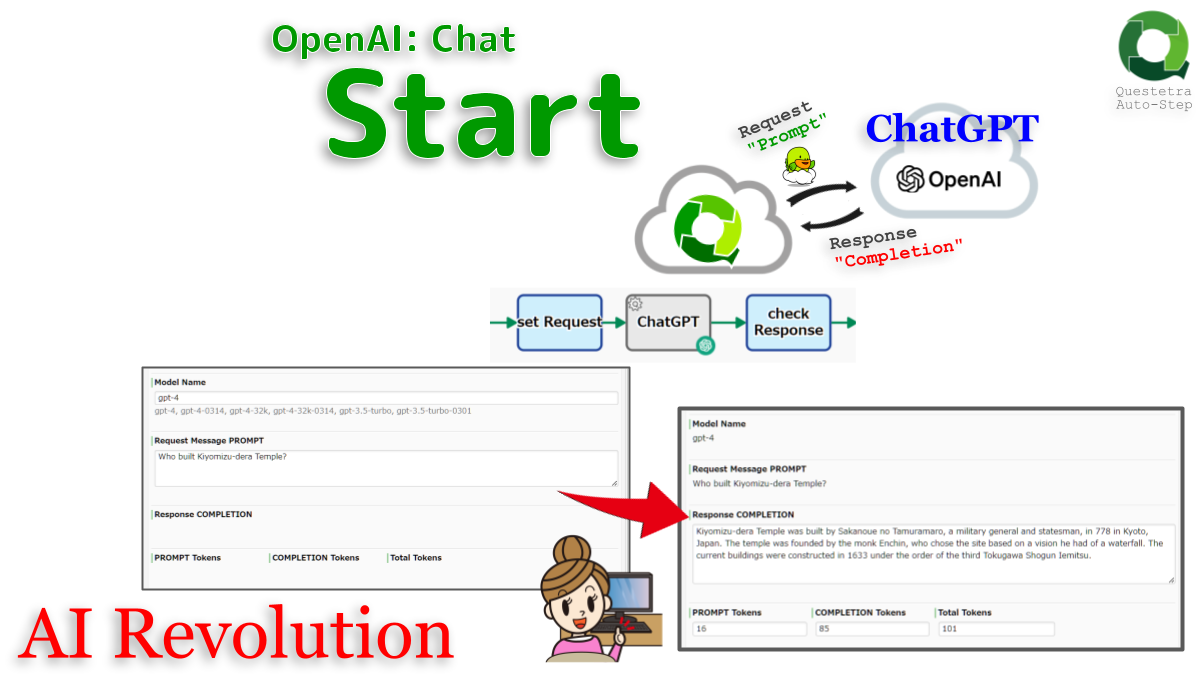
OpenAI #Chat: Start
Starts a conversation with the OpenAI API (ChatGPT). The MODEL used is “gpt-4” by default (configurable). A response (COMPLETION) to an instruction question (PROMPT) is automatically obtained.
-
●

OpenAI #Audio: Transcribe to WebVTT
Transcribes audio and video files in caption format WebVTT, using the OpenAI API “whisper-1” model by default (configurable) to convert audio data into text data. Set abbreviations and technical terms as PROMPT for more accurate transcription.
-
●
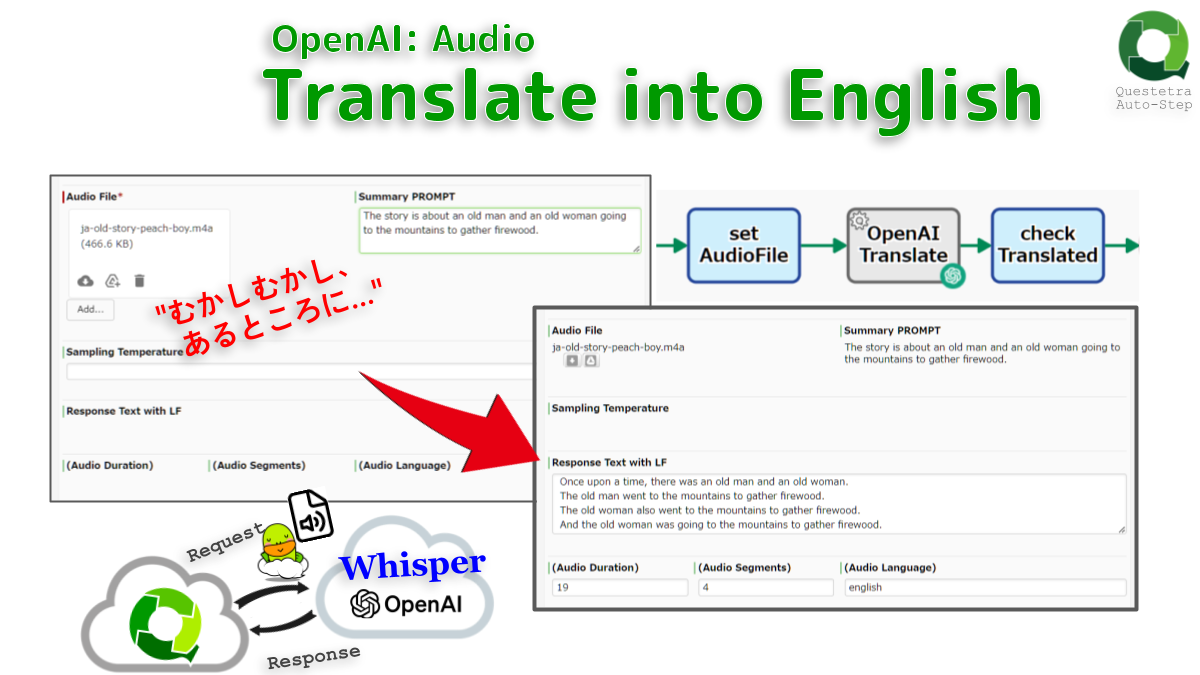
OpenAI #Audio: Translate into English
Translates audio into English. English text data is generated from sound or video file containing Japanese or other, using the OpenAI API “whisper-1” model. Abbreviations and technical terms can be set as PRMOPT to achieve more accurate translation.
-
●
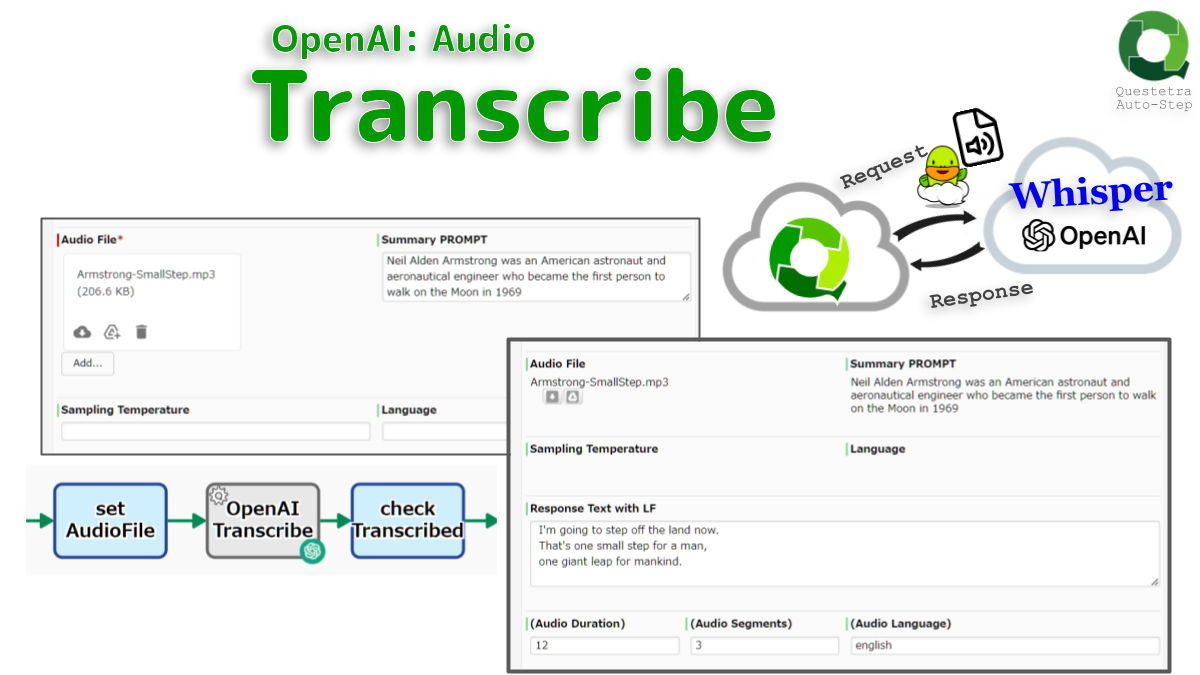
OpenAI #Audio: Transcribe
Transcribes from audio file. The “whisper-1” model in the OpenAI API converts speech data into text data. If set abbreviations and technical terms as summary (PRMOPT), more accurate data conversion will be achieved.
-
●
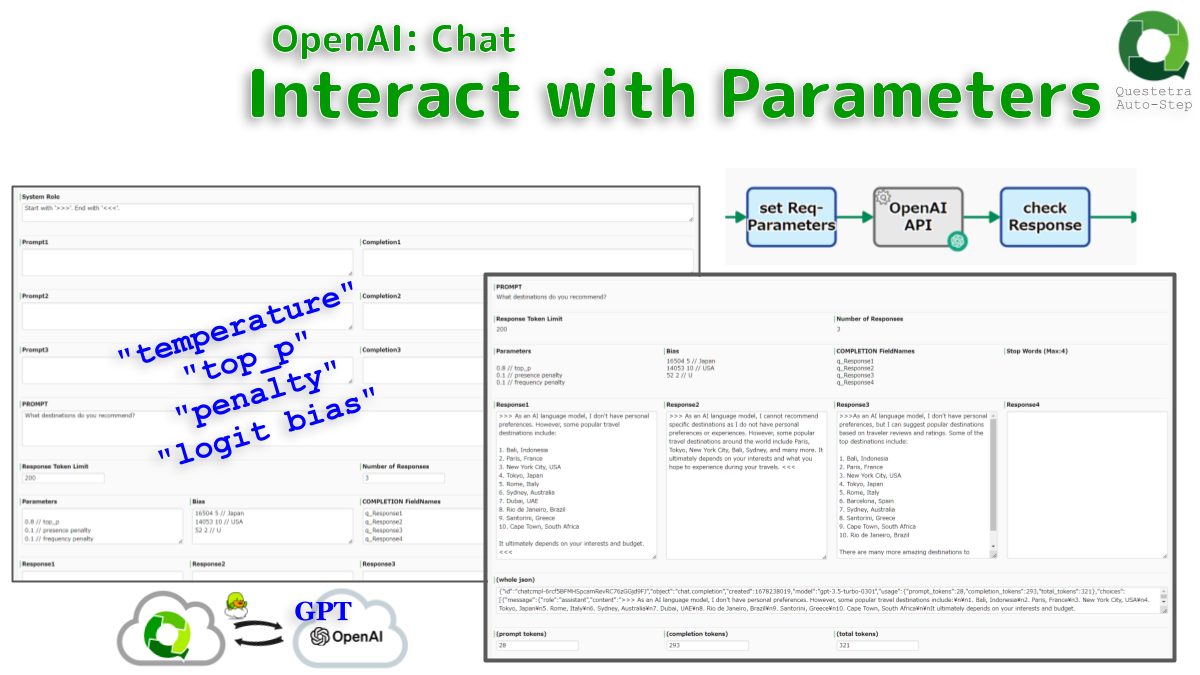
OpenAI: Chat, Interact with Parameters
Communicates with OpenAI API (ChatGPT). Instructions with conversation history and/or advanced parameters (PROMPT) are possible; Sampling temperature, Sampling Top_P, Presence penalty, Frequency penalty, Logit bias. Model ID used is “gpt-3.5-turbo”.
-
●

OpenAI: Chat, Start
Starts a conversation with the OpenAI API (ChatGPT). The model ID used is “gpt-3.5-turbo”. A response (COMPLETION) to an instruction question (PROMPT) is automatically obtained.
Add-ons
-
Upload to Dropbox
Upload files to specified directory in Dropbox. You can specify whether to overwrite files with the same name.
-
Image-Charts: QR Code, Create
Creates a QR Code using the Image-Chart QRCode web service generation. It is possible to encode any string data to the QR code. The QR Code image will…
-
Adobe PDF Services #Results: Download
Downloads the files (results of PDF OPERATIONS) from PDF Services storage using Polling-URI; Job status URI for polling the results. Note that if the Job is in progress,…
-
Adobe PDF Services #NonPDF: Create PDF
Creates PDF document from Non PDF Asset stored in the internal storage for PDF Services. Note that the job result (PDF file) will be obtained in an automated…
-
Adobe PDF Services #ASSET: Delete
Deletes the ASSET (file) stored in internal storage for PDF Services.
-
Adobe PDF Services #ASSET: Download
Downloads ASSET file stored in the internal storage for PDF Services. It is also possible to get the file size and Content-Type. The default file name is the…
-
Adobe PDF Services #ASSET: Get Metadata
Retrieves metadata for ASSET (file) stored in internal storage for PDF Services; the accessible user ID, file size, and Content-Type.
-
Adobe PDF Services #ASSET: Upload
Uploads an ASSET (file) to the internal storage for PDF Service. AssetID is used in the downstream PDF Services operations.
-
Post Message through LINE Notify
Posts a message to a LINE group through LINE Notify. Please obtain a personal access token in advance. The recipient of the message will be selected at the…
-
Converter: Email-String to Quser
Converts an Email string to USER data. If the address is not registered as a user address, an error will occur (USER not updated). If multiple addresses are…
-
OpenAI #Images: Edit Specific Area
Completes the transparent areas of an original image with a PROMPT, by default 1024×1024. The areas to be edited can also be specified in another file. The given…
-
OpenAI #Images: Create Variation
Creates a variation of a given image. By default a 1024×1024 image is created. 256×256 or 512×512 are also creatable. The given image must be a square image…
-
OpenAI #Images: Generate
Creates an image given a prompt. By default a 1024×1024 image is generated, but you can change it to 256×256 or 512×512. Note that PROMPT must be defined…
-
Singleline CSV String, Extract Cell
Extracts the cell value of the specified ID, starting from zero. The extracted cell string can be stored not only in the String-type data but also in the…
-
OpenAI #Chat: Interact with Parameters
Communicates with OpenAI API (ChatGPT); the default MODEL is “gpt-4” (configurable). Supports almost all Chat features, such as re-asking based on histories and/or parameters; sampling temperature-Top_P, Presence-Frequency penalty,…
-
OpenAI #Chat: Start
Starts a conversation with the OpenAI API (ChatGPT). The MODEL used is “gpt-4” by default (configurable). A response (COMPLETION) to an instruction question (PROMPT) is automatically obtained.
-
OpenAI #Audio: Transcribe to WebVTT
Transcribes audio and video files in caption format WebVTT, using the OpenAI API “whisper-1” model by default (configurable) to convert audio data into text data. Set abbreviations and…
-
OpenAI #Audio: Translate into English
Translates audio into English. English text data is generated from sound or video file containing Japanese or other, using the OpenAI API “whisper-1” model. Abbreviations and technical terms…
-
OpenAI #Audio: Transcribe
Transcribes from audio file. The “whisper-1” model in the OpenAI API converts speech data into text data. If set abbreviations and technical terms as summary (PRMOPT), more accurate…
-
OpenAI: Chat, Interact with Parameters
Communicates with OpenAI API (ChatGPT). Instructions with conversation history and/or advanced parameters (PROMPT) are possible; Sampling temperature, Sampling Top_P, Presence penalty, Frequency penalty, Logit bias. Model ID used…
-
OpenAI: Chat, Start
Starts a conversation with the OpenAI API (ChatGPT). The model ID used is “gpt-3.5-turbo”. A response (COMPLETION) to an instruction question (PROMPT) is automatically obtained.