This document explains four items that start multipleCases at a time specified by a timer, and how Cases are started by the events. This function is useful when you want to automatically start a task at a specific timing. Automating the start of a task is an effective way to ensure that regular tasks are performed. We will also introduce specific usage scenarios, so please use it while imagining actual situations.
Types of Timer Start events and Their Behavior


We will introduce the timer start events provided as of November 2024 by type. The method for setting the timer is the same for all of them. For details on how to set them, please refer to Starting a Case Every Monday Morning.
1. Timer Start Event
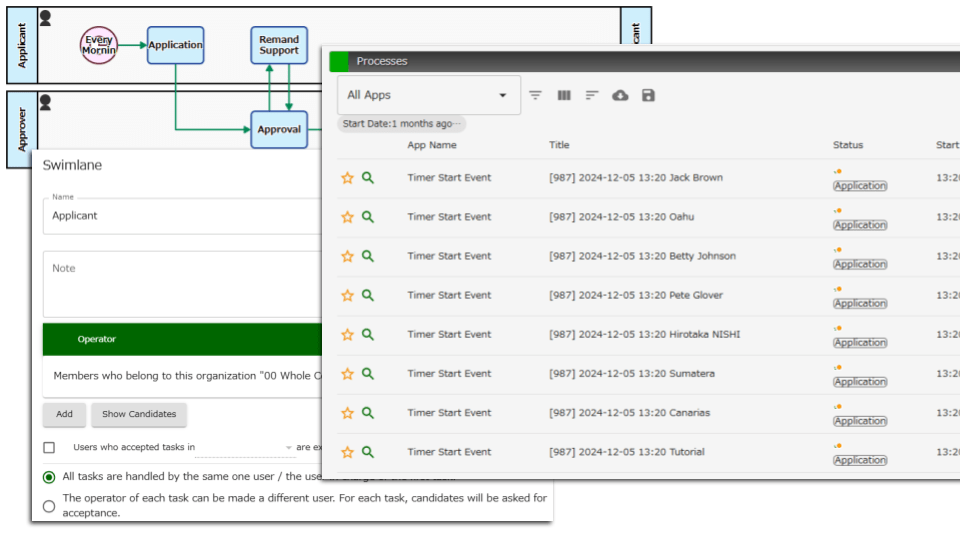
When the specified time arrives, the number of Cases based on the specified conditions will be automatically started. The person in charge will be automatically assigned.
When [Fixed Number] Is Specified
The specified number of Cases will be started automatically. Depending on the Operator settings of the Swimlane, all the first tasks will be assigned to one user’s [My Tasks] or will be [Offered] for all candidates.
- Example usage scenario: Start 10 Cases so that 10 social networking posts are made each week
When [Count of Operators (Auto Allocate)] is specified
The number of Cases that will be started will depend on the number of Operator candidates set in the Swimlane. The Cases will be assigned to each candidate’s [My Tasks].
- Example usage scenario: Have all employees report on their work every day
2. Timer Start: Number of Organizations
One Case will be started for each target Organization. The scope of organizations is specified by a combination of the following settings in the event properties:
- [C2: Base Organization]
- Specify one organization
- Example: Specify “01: Sales Department” in the organization chart below
- Specify one organization
- [C3: Include the Base Organization]
- Select whether to start a Case for the organization specified in [C2] by turning it on or off.
- Example: Specify “Off”
- Select whether to start a Case for the organization specified in [C2] by turning it on or off.
- [C4: Organizations to be included besides the Base Organization]
- Specify the range of subordinate organizations of the organization specified in [C2] by selecting [None] (do not include), [Child organizations], or [All sub organizations].
- Example: Specify [Child organizations]
- Specify the range of subordinate organizations of the organization specified in [C2] by selecting [None] (do not include), [Child organizations], or [All sub organizations].
In the above example, one Case will be started for “11: Sales Department 1” and one for “12: Sales Department 2”.
If [C3:] is set to “Off” and [C4: ] is set to “None”, there will be nothing to launch and a startup error will occur.
The Case is started with the target organization set in the Organization-type data item. If you specify this Organization-type data item in the Operator settings, the members of the target organization will be operating candidates in each Case.
- Examples Usage Scenario:Each department under the Sales Department must submit monthly reports to the head of the Sales Department.
[Timer Start: Number of Organizations]

3. Timer Start: Number of Choices
The number of Cases that will be started is the number of options registered in the Select-type data item specified in the event properties. One Case will be created for each option, and the Case will be started with the option set in the Select-type data item.
If you prepare multiple Select-types with a common choice ID but different display labels, you can use [Update Data] to set specific values for the start target to multiple data items.
- Example usage scenario: Automatically send quarterly service satisfaction survey emails to all customers
[Timer Start: Number of Choices]

4. Timer Start: kintone: Number of Records
A Case is started based on a record in the kintone app. One Case is created for each record in the specified kintone app, and the ID (record number) of the corresponding record is obtained and saved within the Case. In subsequent steps, you can combine and use automated steps that link with other kintone apps.
You can also use search queries to filter and Case only records that meet certain criteria, allowing you to start Cases only on the records you want.
- Example usage scenario:Every six months, obtain email addresses from the customer list and automatically send service satisfaction survey emails
[Timer Start: kintone: Number of Records]

Configuration Notes and Operation Checks
Maximum Number of Launches
For all timer start functions, the number of Cases that can be started simultaneously with one timer start is limited to 100. If the limit is exceeded, for example if the number of options is more than 100, an error will occur when the timer is started and no Cases will be started.
The number of launches depends on the start target of each item, so in [Timer Start: Number of Choices], set the number of choices to 100 or less, and in [Timer Start: kintone: Number of Records], specify a search query so that the number of target records for the kintone app is 100 or less.
If you want to start a Case for more than 100 targets, you will need to set up a separate step or app for the 101st and subsequent targets.
Debug Execution
You can start a debug Case with [Timer Start: Number of Organizations], [Timer Start: Number of Choices], or [Timer Start: kintone: Number of Records]. Even if multiple Cases are set to start, only one randomly selected Case will run in debug mode. This makes it easier to check the operation of the Case after it has started and to detect errors.
In addition, if the settings exceed the limit on the number of launches, a launch error will occur even in the debug Case, allowing you to check for improper settings.
Tutorial: How to Ensure Apps Operate Correctly
Summary
We have introduced a variety of automated timer-based start events. Cases are started according to the items targeted by each start event, such as an organization chart or a specific list. With the addition of timer start variations, the number of situations in which they can be used has expanded. By using timers, you can ensure that work starts at the specified time, prevent omissions, and improve efficiency. Aim to optimize your business operations with flexible settings for each usage scenario.