- Question.
-
How do I carry out operational tests when I have modified a running Workflow App?
- Answer.
-
By using the [Debug Case execution] feature, it is possible to check the operation without releasing the application.
What’s the Debug execution feature?
It is a feature to conduct testing/operational checks on a Workflow App. Using [Debug Case execution], you will be able to start a Case for testing (debugging) without [Releasing] the App.
Who will use it? From where will it start?
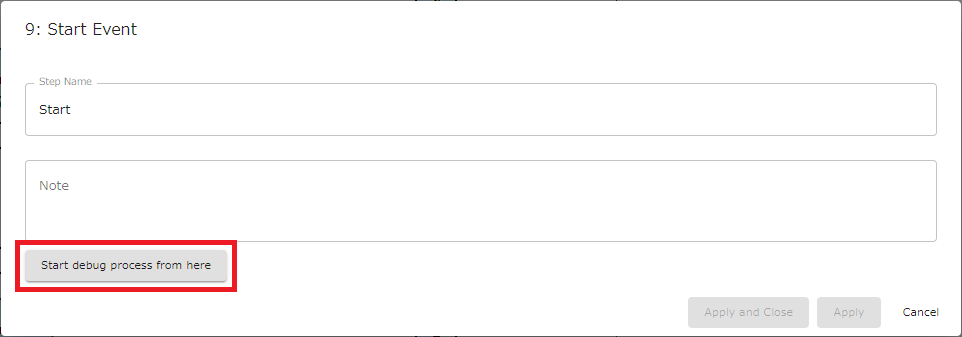
[Debug Case execution] is a feature for Workflow Designers and is available for users who have [App Administrator] authority on the target Workflow App.You can find it in the properties window of each manual Start Event.
Execution Options
There are some execution options provided in [Debug Case execution]. In particular, the option “Allocate all tasks to me” is very useful for the operational check of a Workflow App in the developing phase.

The Case will start from the Human Task that immediately follows the Start Event.
- In [Debug Case execution] it is possible to start a Case regardless of the Operator setting of the Swimlane in which the Start Event is located. The User who performs [Debug Case execution] will become the [Case Start User].
- [Message Start Event] and [Timer start event] cannot be selected as the starting point. (as of Ver.13.0)
If you wish to start a Case from an automatically triggering Task (such as a [Message Start Event (email)]) you must temporarily place a manual Start Event for the purpose of the test besides it.
Profile
In the situations where [Variables]* are used in the Workflow App definition, select a profile for Debug execution. (*This is set in the Edit mode > [Variables Setting])
By using [Variables] you will be able to switch the Email destination or Access URL of the [Throwing Message Intermediate Event] according to the profile. Use this function in situations where you want to send emails to destinations during test runs that are different from the actual operation.

Allocate all tasks to me
Select [Operators] who will handle the Tasks. When this option is checked all the Tasks will be allocated to yourself (the person who started debugging).
- Checked: All Tasks will be handled by you, not just the first Task.
- Unchecked: The person who starts the Case will become the Operator of the first Task. After that, it follows the definition of the App
Management of the Case Started by Debug Execution
The Case started by [Debug Execution] will appear on the [My Tasks] list of the Operator of each Step just like actual Cases. The Issue will proceed according to the Workflow App definition and Debug execution options. Also, it will appear in search results if it matches the search conditions.
The differences from normal Cases are as below.
Display Method
The Debug execution Cases are marked with an icon in the Task Operating screen, list of Cases, or Case Details.


Automatically deleted
The Case started by the [Debug Execution] mode will be deleted automatically when the following action occurs.
- [Release] a new version of the App