The Apps published on the Questetra website are created with fictional Users, Organizations, etc. When you import an App from an archive you should change the settings according to the information on the workflow platform.
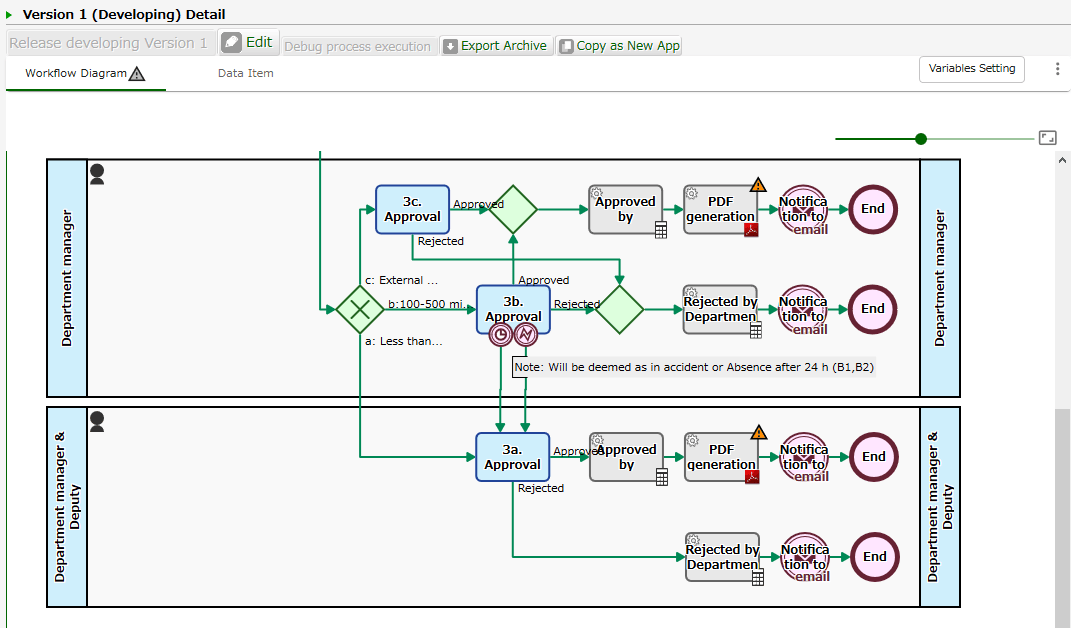
In addition, App settings errors are displayed in the workflow diagram on the App Details screen. You should check the error contents and modify all errors on the [Edit] screen, or you will not be able to [Release] the App.
Specify an archive file or the archive download URL, and click [Import] to display the import screen. There, set up the configuration for App properties, Operator settings on swimlane, and App linkage settings (if the corresponding Step icon is used). In the Swimlane configuration you should link the User/Organization/Role information registered in your workflow platform to the Swimlane
Edit the properties if needed
You can also specify an App ID (Ver.15.1 or later)
If you uncheck the [Generate ID] check box, the input field will be displayed
Specify any number not previously used as an ID
It is possible to match the App ID in the “test environment” and the “production environment”
[Category] displays the category in the environment where the App was created
If there is no corresponding category in the environment to be imported, the displayed category will be added
If you do not want to add a category, specify an existing category
Check if the Users or Organizations (departments) assigned to the Swimlane are as you intended
Link the most appropriate User or Organization to the Swimlane (you can change the settings later)
Enter a partial name for the User or Organization. You can also click the icon on the far right which displays [Select from Organization Tree] to select
The name of the Swimlane does not always match the Organization name in your workflow platform
Be sure to specify required settings if they are blank
Select and specify other App (such as sub-Apps to be called) that are referenced within the App (Ver.15.1 or later)
Settings error after Import
If the import is successful, you will enter the App Details screen. An error is displayed in the workflow diagram at the bottom of the screen if there is a deficiency in the settings. By clicking [Edit] you can correct all the errors. We describe the countermeasures for each setting type below.
HTTP Authorization Setting
Add-ons and Service Tasks that use Basic Authentication or OAuth authentication require HTTP Authentication setting name to be specified
You need to add an authentication setting and give it a name
See the following page for more information about the OAuth configuration steps
When using the Options Master () , Base PDF, or Service Task definition files () as App- Shared Add-ons in the workflow platform, an error will occur if the specified file is not registered
Go to [App-shared Add-on] in the [System Settings] to register the necessary files, and edit the App settings again
Includes features available only in higher editions
Delete the modelling element (BPMN Icons) and reconnect the arrow-shaped Flows, or delete the script contained in the Description of the Data Item
Other Important Notes
Although no errors will be displayed, you should check the following points before releasing (and activating) the App; in particular, you should check the operation and display contents thoroughly via testing functions such as [Debug Case execution] before using the App for actual business.Reference: How to Ensure Apps Operate Correctly
Initial value (Signatures and fixed sentences)
Initial values may be set in Data Items
Use [Form Preview] to check and rewrite the appropriate content
If connecting to a [Message Start Event (HTTP)] on the same workflow platform, replacing the [Throwing Message Intermediate Event (HTTP)] with a [Service Task (HTTP Request to Start Event)] in the same workflow platform will simplify configuration