Satisfaction Survey, Start Receiving Emails

Satisfaction Survey, Start Receiving Emails 20211004
This workflow automatically requests a service satisfaction survey. Customer information (email address, etc.) is captured from the body of the “Service Offer Notification Email (BCC designation)” and the survey request is sent via email. The customer accesses the form URL provided in the email and responds to the survey.
Worker (#of Swimlane: 2)
  • Sales Team
  • Survey Request – Response
Business Flow (Complexity of Workflow: 17)
  • 5Requestee registration
    • The survey tabulation team can also start a survey manually.
  • 7 Service usage experience survey
  • 3 Set Title
  • 2Set Requester
    • The Workflow platform extracts the organization name, name, email address, and service name from the service completion notification email and sets them in each data item.
  • 16Answer Status: Reminder
    • The Workflow platform will record the wording “[Reminder]” at the beginning of the subject line to indicate that the survey response is being requested.
  • 19Answer Status: Answered
    • The Workflow platform will record the phrase “[Answered]” to the beginning of the subject line to indicate that the survey has been answered.
  • 12Answer Status: Unanswered
    • The Workflow platform will record the phrase “[Unanswered]” at the beginning of the subject line to indicate that the survey has ended without response.
Business Process Variables (#of Data Item: 16)
  • Company Name q_corp_name 0
    • The customer organization name is stored. (Used in the body of the “Service Usage Survey” request email)
  • Operator Name q_person_name 1
    • The customer name is stored. (This will be used in the body of the email requesting the “Service Usage Survey”)
  • Operator Email Address q_person_mailaddress 2
    • This will store the customer’s email address. (You will receive an email requesting you to take the “Service Usage Survey”)
  • Service Name q_service_name 3
    • The name of the product or service being surveyed is stored here. (This will be used in the body of the “Service Usage Survey” request email)
  • ◆ Questionnaire Form Introduction 13
  • Q1. How satisfied are you with the service experience? q_Q_1 8
  • Q2. How satisfied are you with the design of the service? q_Q_2 9
  • Q3. How satisfied are you with the service fees? q_Q_3 7
  • Q4. Overall, how satisfied are you with the service? q_Q_4 4
  • Q5. If you have any comments or requests regarding our services, please feel free to write them here. q_Q_5 5
  • ◆ Form entry thank you wording/button name change 12
    • Change the button name on the survey response form. (“Send” → “Answer the survey”)
  • Survey API keyq_form_api_key6
    • The survey key is stored here. (The key is included in the response URL)
    • #{#randomString(12)}
  • Survey Deadlineq_deadline_datetime10
    • The deadline for responding to the survey is stored (7 days after the response request)
    • processInstanceStartDatetime.addDays(7)
  • Answer Statusq_answer_status11
    • The survey answer status is stored.
    • first
  • Service Delivery Completion Email (Subject) q_mail_subject 15
    • The survey answer status is stored.
  • Service Delivery Completion Email (Body)q_mail_body14
    • The body of the service provision completion email (received via BCC) will be stored.

Field Name, num, Initial Value

Download

This archive contains the BPMN icon, which is only available in the Professional edition.

Notes

  • You need to associate the Swimlane settings according to your organizational structure upon import

Capture

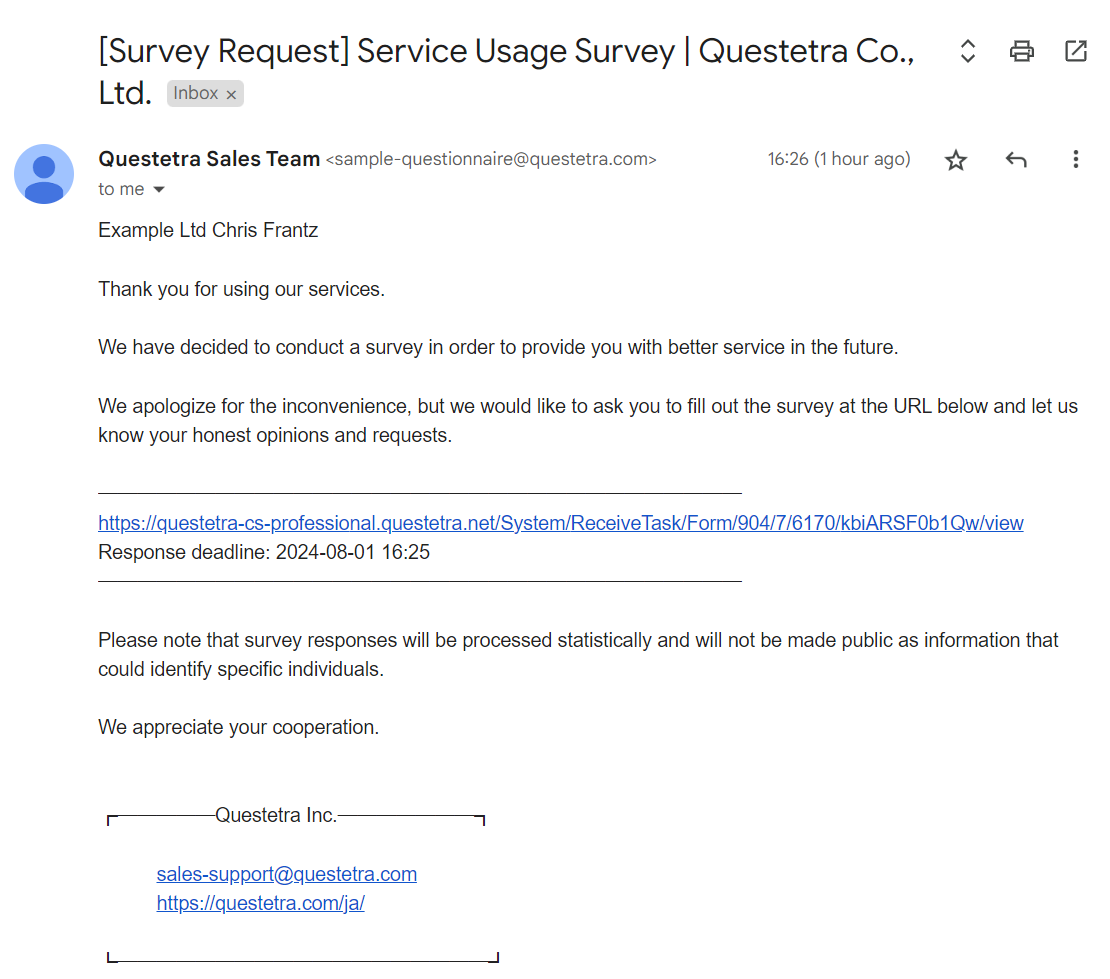
Example: Survey request email
Survey request form

See also

Leave a Reply

This site uses Akismet to reduce spam. Learn how your comment data is processed.

Scroll to Top

Discover more from Questetra Support

Subscribe now to keep reading and get access to the full archive.

Continue reading