
This page introduces useful features of Questetra, Workflow App templates, and other documents that are useful when creating and operating Workflow Apps.
Self-Study Resources
Questetra has a wide range of functions, and by combining them with the learning content of this tutorial, you can create more complex Workflow Apps.
The Self-Study Resources section introduces how to use Questetra’s functions. Here we will introduce some of them.
Timers and Deadlines
First, there is the timer function. By setting a [Timer Intermediate Event], you can make the process wait until the set time. You can also set a deadline for a [Human Task] and move on to the next step if the process has not been completed by the set time.

Details: Self-Study Resource: Let’s Set a Deadline
Various Data Types
So far we have introduced string, numeric, date, datetime, user, and discussion types as data items. Title is a special data item that holds the input string and displays it as the subject of the process. There are other data types that can be used to define data items, so we will introduce them here.
+ Select type
This lists the options that the operator can select and stores the selection results.
You can choose from the following four form types to display the options:
- Radio button (select one option from the displayed options)
- Check box (multiple options allowed)
- Select box (select from a drop-down menu)
- Search select box (narrow options based on input text)

Details: Data item “Select type”
+ Table type
This is table-format data that combines string, numeric, select (select box), and date data types. By using table-format data items, you can set it to automatically calculate subtotals when you enter unit prices and quantities, or to automatically calculate the total amount.

Details: Data item “Table type”
+ Organization type
Just as the user type specifies a user registered in the Workflow platform, the organization type specifies an organization registered in the Workflow platform.

Details: Data item “Organization type”
+ File type
Displays a file attachment field and stores the attached file (multiple files can be stored).

Details: Data item “File type”
+ Guide Panel type
It displays information to assist the user in entering data, decorations that use HTML to make the input screen easier to see, etc. It is a display-only data item and values cannot be entered.

Details: Data item “Guide Panel type”
R2050: List of Data Types provides an overview of all data types.
Debug Execution
Questetra has a debug execution function that checks the operation of a workflow app during development or before release.
Check the operation of the entire app, etc.

Details: How to Ensure Apps Operate Correctly
You can debug only the processes you want to check.

Details: Self-Study Resource: Debugging a Single Node Only
For detailed explanations of other useful functions and how to use them, please see the Self-Study Resources section.
Workflow App Template
When creating a Workflow App, you will want a reference example. On the support page Workflow Apps (Business Templates), there are more than 100 apps listed as app archives.
An app archive is an exported file of a Workflow app created with Questetra. The app definition contents are recorded in the file, and you can import the file into the Workflow platform you use. However, some information such as organization information is not recorded, so you may need to configure it.
When importing an app archive file, please see the self-study resource Using Business Template for the First Time.
Here, we will introduce three apps listed in the business templates.
Recruitment Interview Process

In this workflow, the hiring manager conducts the initial screening in writing, and the second round of interviews is conducted by the department related to the position applied for. Based on the application type entered during the initial screening, the processing route is switched to the interview process with the corresponding department in charge. In addition, to make it easier to search for the job later, a subject line is automatically set* according to the results.
* Automatic title setting is explained in more detail in the learning content “Let’s Set Subject Lines Automatically”.

Details: Recruitment Interview Process
Application Approval Flow, Web Form Acceptance

This is an application and approval workflow that accepts applications from people without user accounts via a public Web form*. In the event of a return, the URL of the Web form※ for correction is sent to the applicant.
* Advanced or higher required
The data items are general-purpose items that are not limited to a specific business field.

Details: Application Approval Flow, Web Form
Quotation Creation and Storage Flow, OneDrive Storage

This is a workflow that covers everything from creating a quote to registering an order. A quote PDF is automatically created* based on the data entered. Once an order has been confirmed, the quote PDF file is automatically uploaded** to OneDrive.
* Professional required
** Advanced or higher required
In addition to OneDrive, Questetra can also link with external SaaS to perform more advanced automated processing. Please make use of these auto-processing tasks.
Details: Quotation Creation & Storage Flow, OneDrive Storage
Did you find an app you would like to use? You can use the apps listed in the business templates by modifying the workflow diagram and data items. Please modify them to suit your actual business.
For archives of other apps, please see Workflow Apps (Business Templates).
Other Useful Documents
We have introduced Self-Study Resources and Workflow Apps (Business Templates) above, but Questetra also provides other documents that are useful for designing and operating apps and managing the Workflow platform, such as manuals and references that provide detailed information on settings.
Manual
The Manual explains operation and configuration items of Questetra for each situation and operation type. Items are organized according to the role of the user, such as the person in charge of processing a case, the manager who defines the business process, etc.
M1. Handling Issues (for process handlers)
- Return an accepted job to waiting status
- Reuse past data to start a new project
- Check the current progress of all projects in the company
- Check your processing history by month
- Conduct closed communication on projects
M2. Defining Business Process (for workflow managers)
- Define the data items (data sets) required for your business
- Set mandatory checks and input format checks for each data item
- Decorate the processing form screen (HTML/JavaScript)
- Set up a [Business Manual] that can be referenced from the processing form screen
- Set up the total value and consumption tax amount to be dynamically displayed while entering numerical data
M3. Operating the System (for system administrators)
- Appoint a privileged user to manage the whole system of the Workflow Platform
- Update [Organizations] and [Users] in bulk in line with organizational restructuring
- Confirm licenses and set password policies
- Restrict IP addresses from which users can access
- Check user login history and project progress logs
In addition, the manual contains supplementary information such as Questetra’s public specifications under the Reference section. Please refer to them if you want to know the detailed specifications. These articles are also organized by standpoint of the users of Questetra.
Note that the reference numbers correspond to the numbers on the related manual pages.
(For example, M203: Single-Selection Branch and Concurrent Parallel Processing
⇒ R2030: Types of Conditional Expressions at Branching)
R. Reference (For App Designers)
- List of modeling elements by edition/ List of modeling elements by category *
This is a list of modeling elements (BPMN icons) that can be used when drawing a workflow diagram. You can check the overview of each modeling element.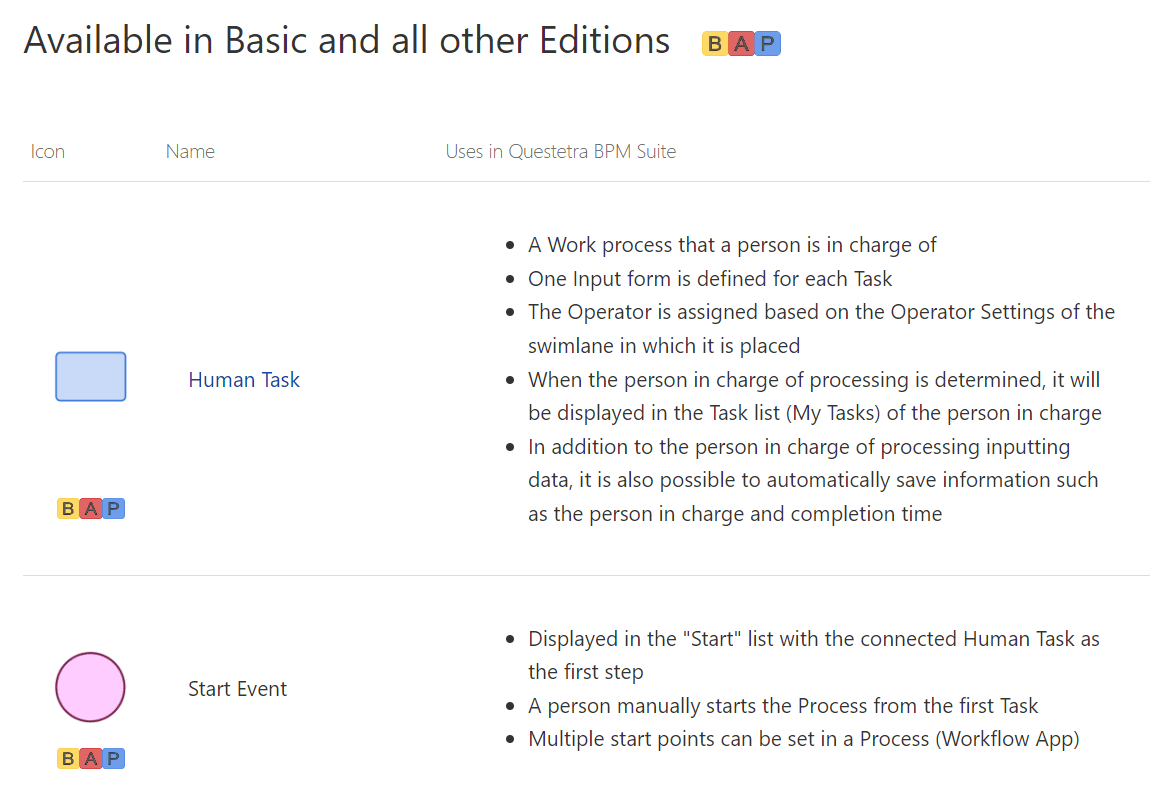
* The modeling elements by edition list can also be accessed from the top menu, and you can access the other page from either the “By Category” or “By Edition” page. - Dynamic Initial Value Formats for Data Items
This is a list of data types that can automatically set dynamic values as initial values when a process starts, such as the process start date and time, the process start user, etc. The format and input sample that can be used to specify the initial value are also listed.
- Embedding dynamic value by EL syntax
Describes the settings format and settings samples when specifying variables and data items in the Process settings using EL expressions (a format for specifying references to specific variables and simple calculations).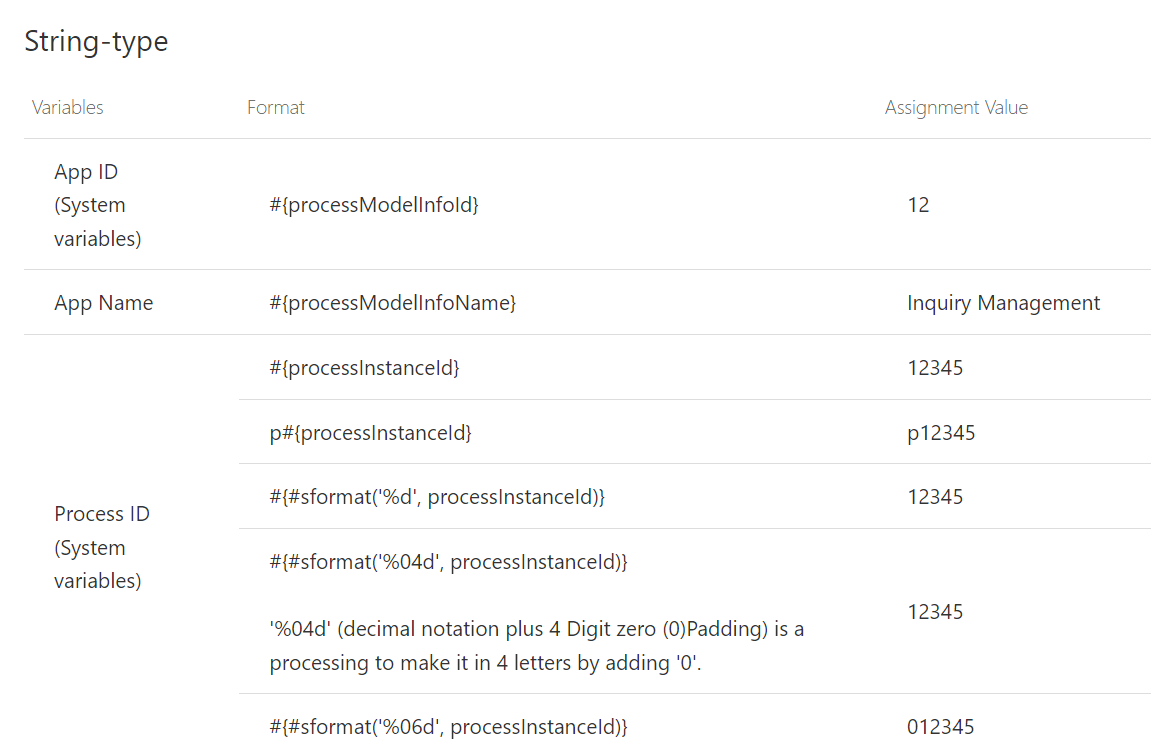
R. Reference (For System Administrators)
- List of System Log Types
This is a list of types of audit logs for system operations. The system logs record who logged in to Questetra and when, and the editing history of user/organization/role settings.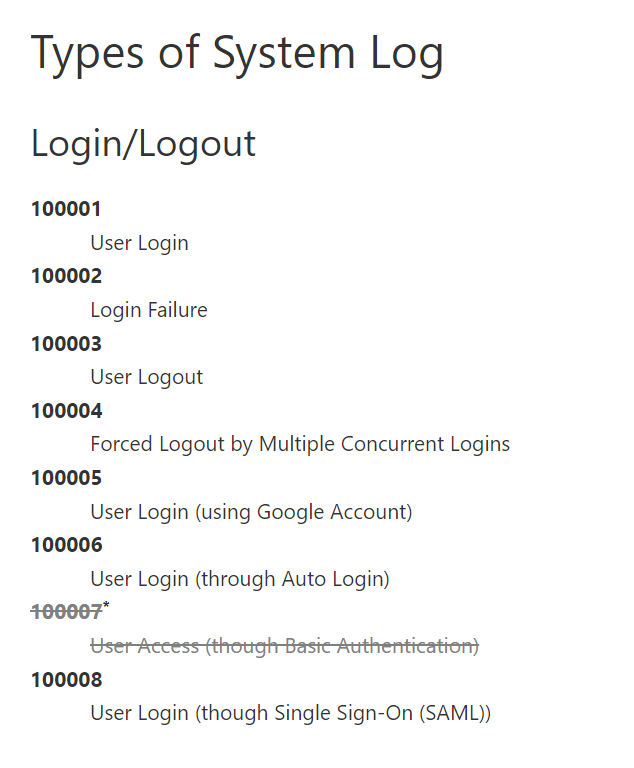
- Recommended Preliminary Settings Procedures
Help Pages
Help for BPMS icons and system settings can be accessed from Questetra.
Modeling Elements Help
This page explains how to use each modeling element and its detailed specification.
Clicking the help markhelp in the upper right corner of the task setting screen in Questetra will access help about the modeling elements of that task.

The modeling elements help page can also be accessed from the modeling elements list on the Questetra support site.
System Settings Help
Help is also available for each system setting. When you open a setting item in the system settings, clicking the help mark displayed in the upper right cornerhelp will open a help page for that setting item in a separate tab.

Community
In the Community Forum (Bulletin Board) where Questetra users gather, users can easily ask questions. When you post a question, Questetra’s support team or other users will answer it.

There may be posts from users who are having the same problem as you. When asking a question, first check the FAQ or search for previous answers to see if the information you are looking for is there.
If you don’t see a similar question, feel free to post your own, as other users may have wanted to ask the same question.
This is the end of the tutorial. Please use the contents of the main tutorial and the appendices to improve your workflow application and workflow for your business!
chevron_backwardChapter 9 Creating an Application for Practical Use

