// GraalJS Script (engine type: 2)

//////// START "main()" /////////////////////////////////////////////////////////////////

main();
function main(){

//// == Config Retrieving / 工程コンフィグの参照 ==
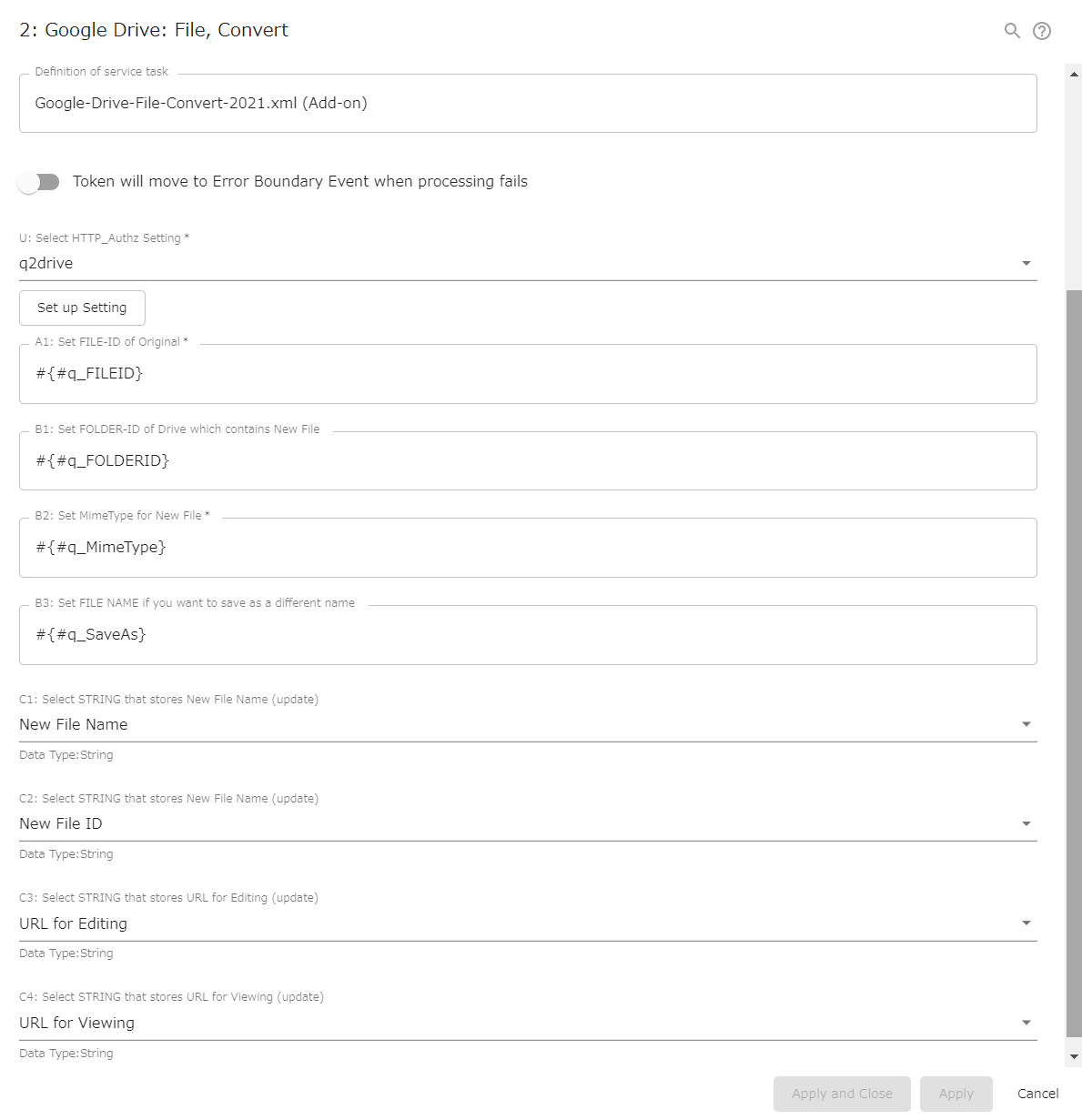
const strAuthzSetting     = configs.get      ( "AuthzConfU" );   /// REQUIRED
  engine.log( " AutomatedTask Config: Authz Setting: " + strAuthzSetting );
const strInputfileId      = configs.get      ( "StrConfA1" );    /// REQUIRED
  if( strInputfileId    === "" ){
    throw new Error( "\n AutomatedTask ConfigError:" +
                     " Config {A1: FileID} is empty \n" );
  }
const strOutputfolderId   = configs.get      ( "StrConfB1" );    // NotRequired
  if( strOutputfolderId === "" ){
    engine.log( " AutomatedTask ConfigWarning:" +
                " Config {B1: FolderId} is empty \n" );
  }
const strOutputfileMime   = configs.get      ( "StrConfB2" );    /// REQUIRED
  if( strOutputfileMime === "" ){
    throw new Error( "\n AutomatedTask ConfigError:" +
                     " Config {B2: MimeType} is empty \n" );
  }
let   strOutputfileSaveas = configs.get      ( "StrConfB3" );    // NotRequired

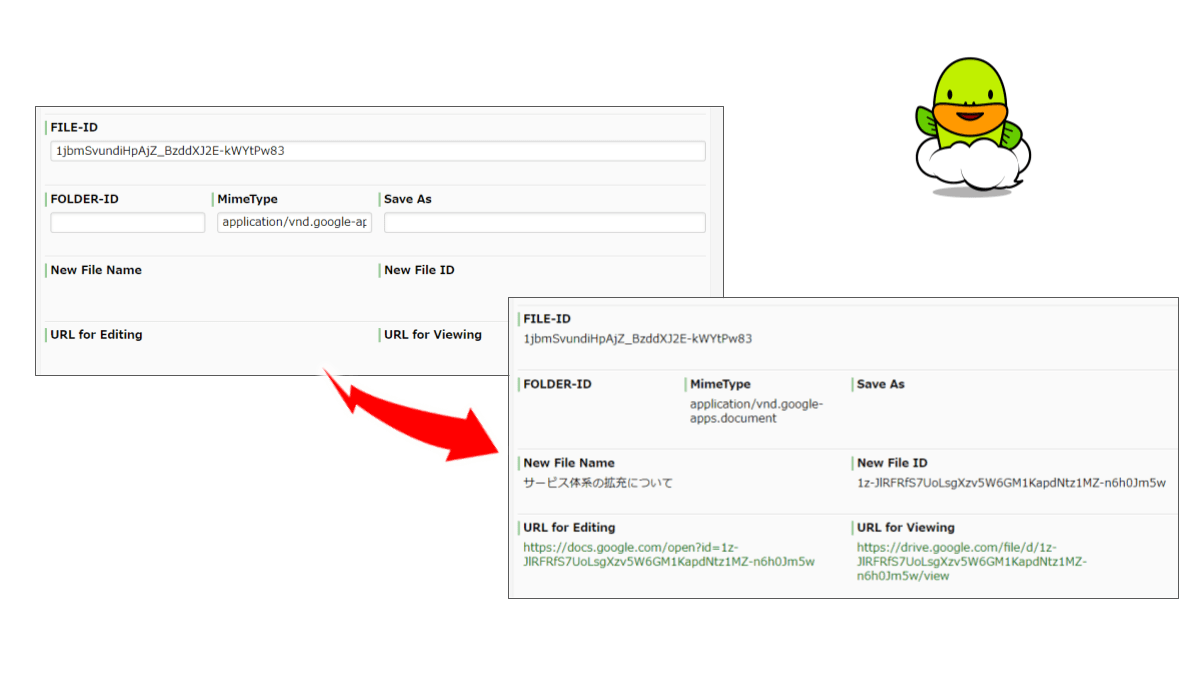
const strPocketOutputfileName = configs.getObject( "SelectConfC1" ); // NotRequired
const strPocketOutputfileId   = configs.getObject( "SelectConfC2" ); // NotRequired
const strPocketOutputfileEdit = configs.getObject( "SelectConfC3" ); // NotRequired
const strPocketOutputfileView = configs.getObject( "SelectConfC4" ); // NotRequired


//// == Data Retrieving / ワークフローデータの参照 ==
// (Nothing. Retrieved via Expression Language in Config Retrieving)


//// == Calculating / 演算 ==
/// Google Workspace for Developers > Google Drive for Developers > v3
/// https://developers.google.com/drive/api/v3/reference/files/copy
// request1, prepare
let request1Obj = {};
    if( strOutputfolderId !== "" ){
      request1Obj.parents     = [];
      request1Obj.parents[0]  = strOutputfolderId;
    }
    if( strOutputfileSaveas !== "" ){
      request1Obj.name        = strOutputfileSaveas;
    }
    request1Obj.mimeType = strOutputfileMime;
    // https://developers.google.com/drive/api/v3/mime-types
    // https://developers.google.com/drive/api/v3/ref-export-formats
let request1Uri = "https://www.googleapis.com/drive/v3/files/" +
                  strInputfileId + "/copy";
let request1    = httpClient.begin(); // HttpRequestWrapper
    request1    = request1.authSetting( strAuthzSetting ); // with "Authorization: Bearer XX"
    // https://questetra.zendesk.com/hc/en-us/articles/360024574471-R2300#HttpRequestWrapper
    request1    = request1.queryParam( "supportsAllDrives", "true" );
    request1    = request1.body( JSON.stringify( request1Obj ), "application/json" );

// request1, try
const response1     = request1.post( request1Uri ); // HttpResponseWrapper
engine.log( " AutomatedTask ApiRequest1 Start: " + request1Uri );
const response1Code = response1.getStatusCode() + "";
const response1Body = response1.getResponseAsString() + "";
engine.log( " AutomatedTask ApiResponse Status: " + response1Code );
if( response1Code !== "200"){
  throw new Error( "\n AutomatedTask UnexpectedResponseError: " +
                    response1Code + "\n" + response1Body + "\n" );
}

// response1, parse
/* engine.log( response1Body ); // debug
{
  "kind": "drive#file",
  "id": "1x9rZrt-Iyj2QBewzeLF1P7fG-plXaKMyCnJSFAT-d1g",
  "name": "Questetra-Intro-en",
  "mimeType": "application/vnd.google-apps.document"
}
*/
const response1Obj = JSON.parse( response1Body );
engine.log( " AutomatedTask ApiResponse: NewFile ID: " + response1Obj.id );
engine.log( " AutomatedTask ApiResponse: MIME Type: " +  response1Obj.mimeType );


//// == Data Updating / ワークフローデータへの代入 ==
if( strPocketOutputfileName !== null ){
  engine.setData( strPocketOutputfileName, response1Obj.name );
}
if( strPocketOutputfileId   !== null ){
  engine.setData( strPocketOutputfileId,   response1Obj.id );
}
if( strPocketOutputfileEdit !== null ){
  engine.setData( strPocketOutputfileEdit, "https://docs.google.com/open?id=" +
                                            response1Obj.id );
}
if( strPocketOutputfileView !== null ){
  engine.setData( strPocketOutputfileView, "https://drive.google.com/file/d/" +
                                            response1Obj.id + "/view" );
}

} //////// END "main()" /////////////////////////////////////////////////////////////////


/*
Notes:
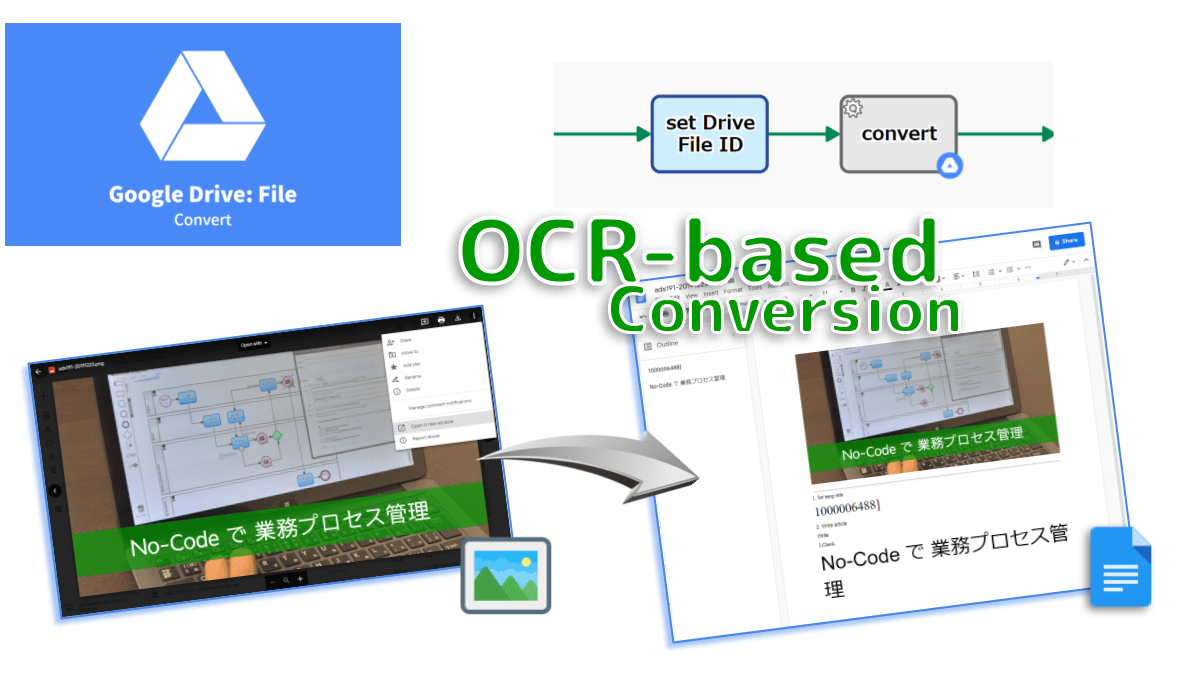
- Refer to the file ID of the image from the URL in "Open in new window"
- If Folder-ID not specified, the file will inherit any discoverable parents of the source file.
- If convert to "Google Docs", specify MimeType to "application/vnd.google-apps.document".
    - https://developers.google.com/drive/api/v3/mime-types
    - https://developers.google.com/drive/api/v3/ref-export-formats

Notes-ja:
- 画像ファイルのIDは「新しいウィンドウで開く」のURLを参照します。
- 保存フォルダが無指定の場合、元ファイルの所属フォルダ情報が継承されます。
- たとえば "Google Docs" への変換は "application/vnd.google-apps.document" と指定します。
    - https://developers.google.com/drive/api/v3/mime-types
    - https://developers.google.com/drive/api/v3/ref-export-formats

*/

/*
APPENDIX
- OAuth2 Setting example
    - Authorization Endpoint URL:
        - https://accounts.google.com/o/oauth2/auth?access_type=offline&approval_prompt=force
    - Token Endpoint URL:
        - https://accounts.google.com/o/oauth2/token
    - Scope:
        - https://www.googleapis.com/auth/drive
        - 'drive.file' only gives you permission to files that your app has created
    - Client ID:
        - ( from https://console.developers.google.com/ )
    - Consumer Secret:
        - ( from https://console.developers.google.com/ )
        - *Redirect URLs: "https://s.questetra.net/oauth2callback"

APPENDIX-en
- Folders cannot be copied or converted.
- Convert from "MS-Office docx" to "Google Doc" to get the outline.
- About OCR, see Google Drive Hepl: Convert PDF and photo files to text
    - https://support.google.com/drive/answer/176692?hl=en
- To save OCR results, use with "Google Drive: GFile, Export as Text"
- Conversion from "Google Docs" to "MS-Office docx" is not possible (as of December 2019)
- Conversion from "MS-Office docx" to "Google Spreadsheet" is not possible (as of December 2019)
- Image conversion such as "PNG" to "JPEG" is not possible (as of December 2019)
- There are cases where the conversion was successful, but failed (eg. PDF to IMG as of 2019)
- For some PDF, the recognition rate for text extraction (OCR) may be significantly reduced.

APPENDIX-ja
- フォルダはコピー(変換)できません
- 「MS-Office docx」から「Google ドキュメント」に変換するとアウトラインが取得されます
- テキスト抽出(OCR)の仕様は Google ドライブヘルプを参照してください
    - https://support.google.com/drive/answer/176692?hl=ja
- OCR結果の保存には、『Google ドライブ: Gファイル, Text エクスポート』を下流に配置します
- 「Google ドキュメント」から「MS-Office docx」といった変換はできません(2019年12月現在)
- 「MS-Office docx」から「Google スプレッドシート」といった変換はできません(2019年12月現在)
- 「PNG」から「JPEG」といった画像変換はできません(2019年12月現在)
- 変換成功の応答であっても、失敗しているケース(eg. PDF to IMG)があります(2019年12月現在)
- 一部のPDF書式では、テキスト抽出(OCR)の認識率が著しく低下する場合があります

*/